


Zonewell See every contact and deal on a map, and route leads by service area.
Listed on the HighLevel App Marketplace as “Zonewell: Contact Map and Service Areas”
Related: Sluicewell, routes leads to your client accounts and can use the service areas each client drew in Zonewell as its territory.
$49 a month or $490 a year per business account. 14-day free trial.
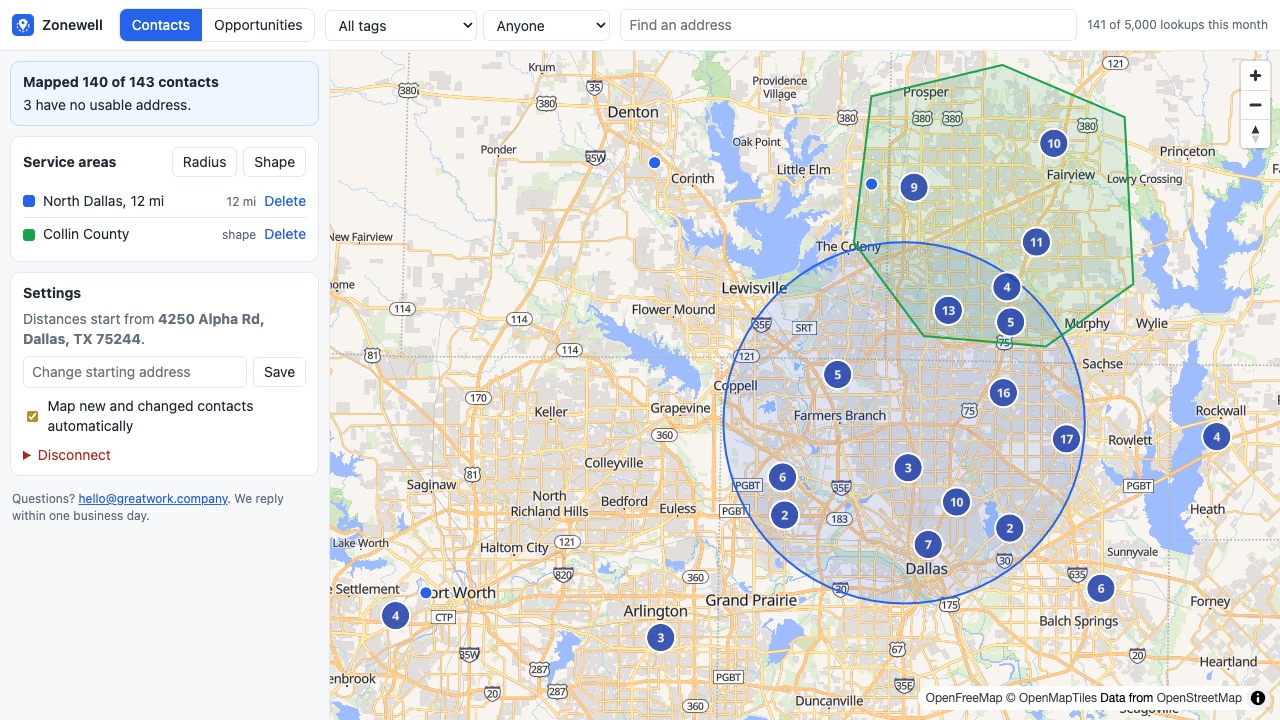
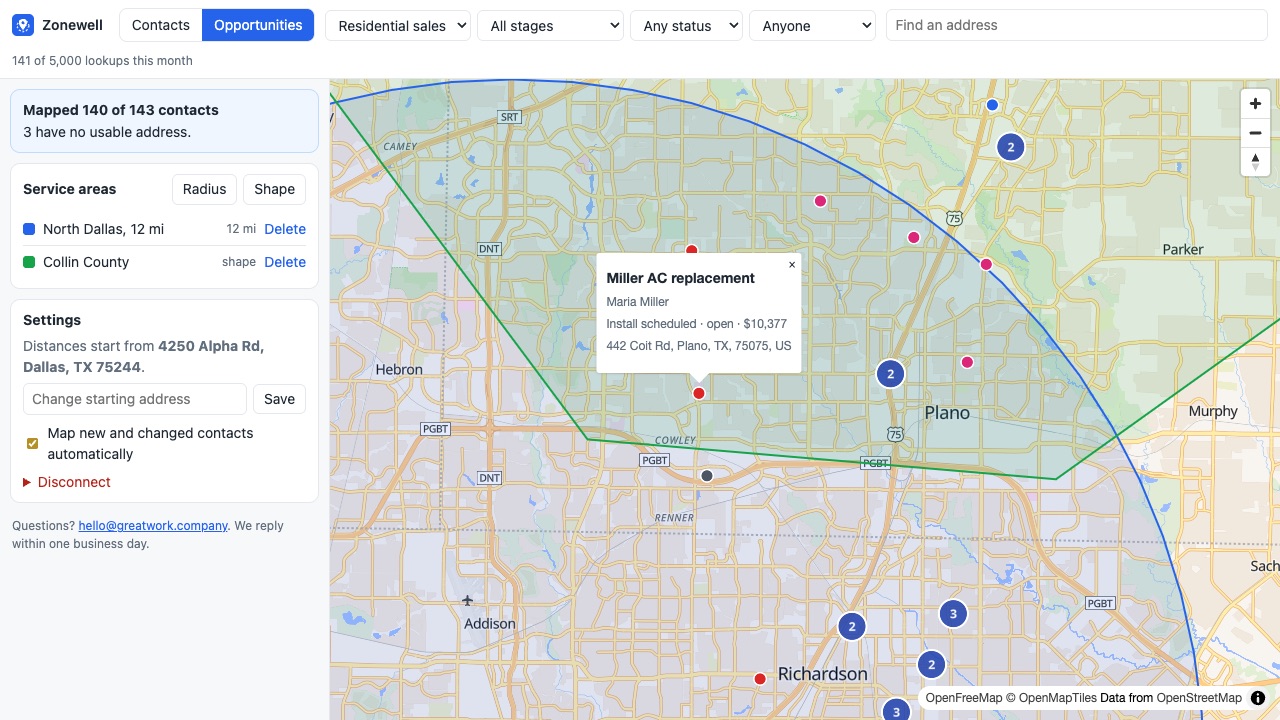
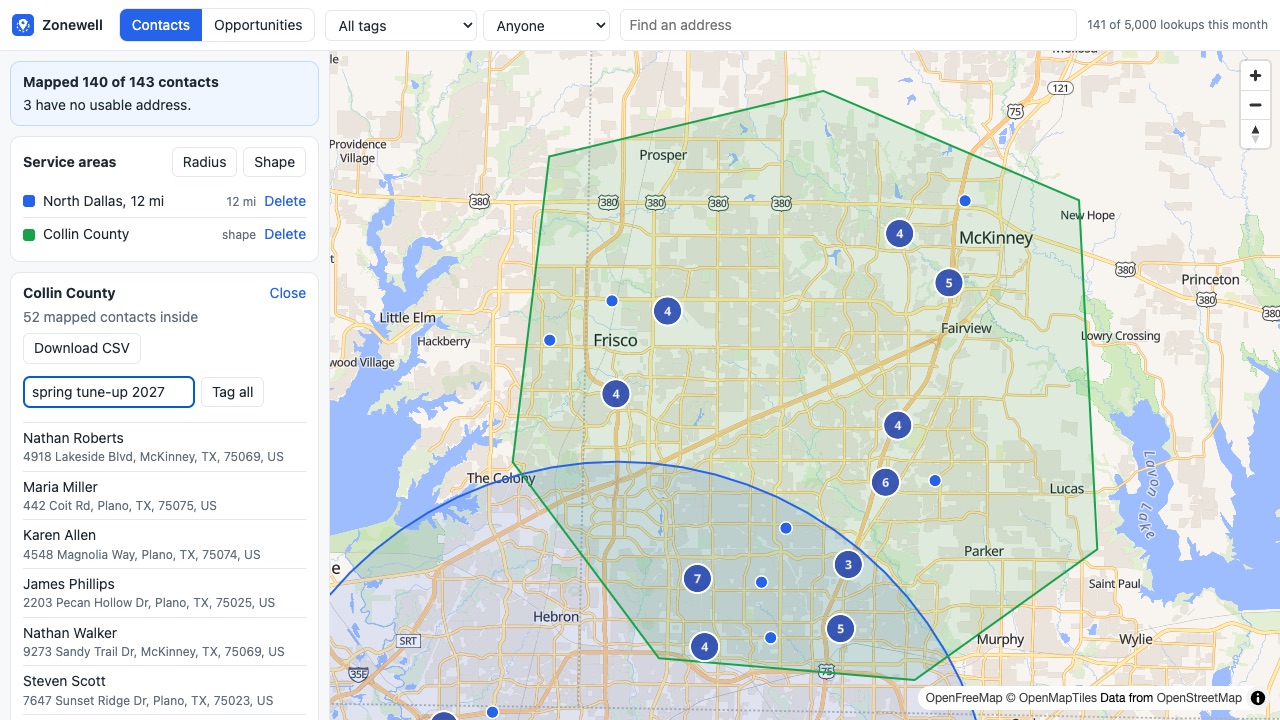
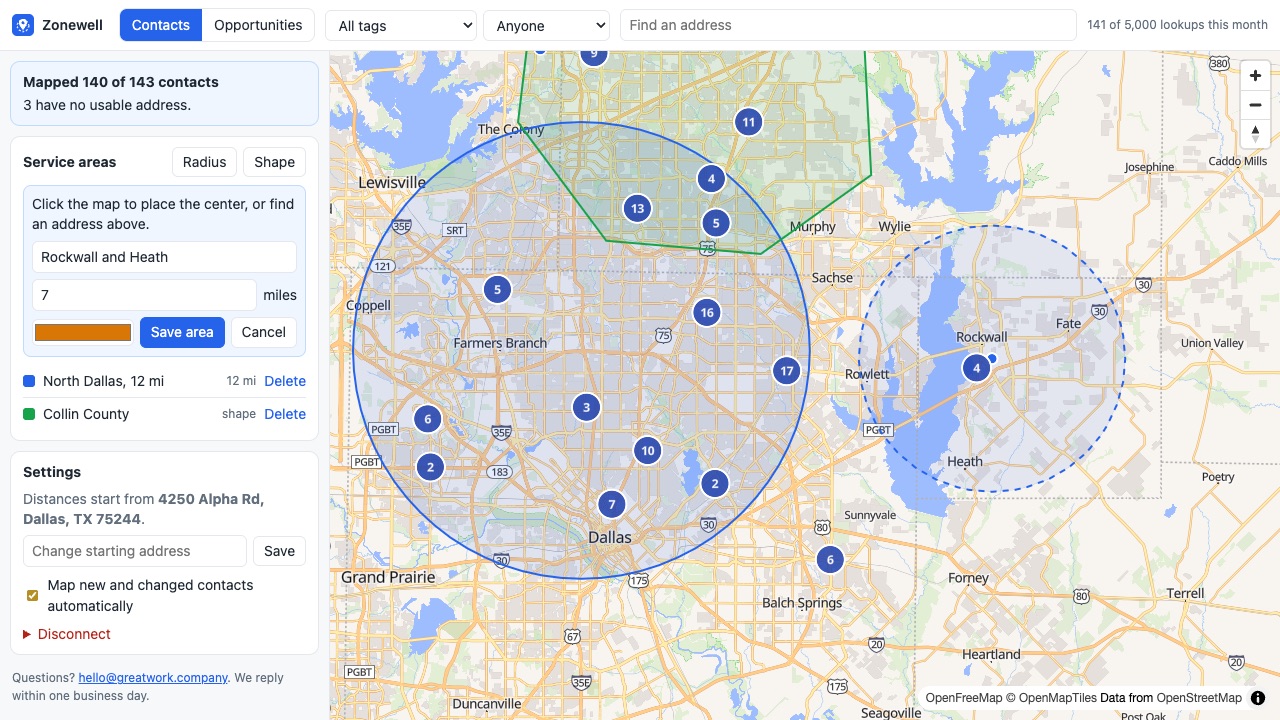
Zonewell puts your CRM on a map and turns your service area into a workflow step.
What you get
See your whole pipeline by place
Every contact with an address becomes a pin. Switch to opportunities to color deals by stage, and filter by tag, pipeline, stage, status or assigned user. Click a pin to see the name, address and tags, then open the contact in one click.
Draw service areas
Add a radius around your office or a branch, or click out a custom shape for a territory. See how many contacts sit inside, download them as CSV, or tag them all at once for a campaign.
Route leads automatically
Three workflow actions:
Always current
New and edited contacts are placed on the map automatically. Addresses are looked up once and reused, so a stable contact list costs nothing to keep mapped.
How Zonewell works
- Install Zonewell from the HighLevel App Marketplace into a sub-account and approve the permissions.
- Open Zonewell from the sub-account's left menu. The map shows "Reading your CRM", then "Placing contacts on the map" while it looks up addresses. Small lists appear within a minute; big ones keep filling in while you work.
- Switch between Contacts and Opportunities. Filter by tag, pipeline, stage, status (Open, Won, Lost, Abandoned) or assigned user. Click a pin for the name, address and tags, then Open contact.
- Draw a service area. Click Radius, search an address or click the map for the center, set the miles, name it and click Save area. For a territory that isn't a circle, click Shape, click its corners and save.
- Open the area. Its panel says how many mapped contacts are inside. Download CSV gives Contact ID, Name, Address and Tags; Tag all adds one tag to everyone inside.
- Set your starting address under Settings. It defaults to the sub-account's business address and is where distances start.
- Add a Zonewell action to a workflow. In the workflow builder, search "Zonewell" and pick Check service area, Distance to contact or Map this contact, then branch on what it returns.
Who it's for
Home service companies that turn down out-of-area jobs
A roofer or HVAC shop that covers one metro gets form leads from three counties away. A Check service area step right after the form tags each lead inside or outside, so in-area leads go to booking and the rest get a referral text instead of a callback.
Businesses with more than one crew or branch
Draw one area per branch. The action returns the matching area's name in area_name, so an If/Else can assign the contact to that branch's user or pipeline.
Agencies building snapshots for local clients
An agency that runs sub-accounts for cleaners, landscapers or pest control companies can put the same "check area, then route" steps in every client's workflow, with each client drawing its own areas on its own map.
Sales teams that plan by place
The Opportunities view colored by stage shows where open deals cluster, which helps plan door-knocking days, ride-alongs or a local campaign to everyone tagged in one area.
Zonewell or HighLevel's own filters
If you only need everyone in one city, state or ZIP code, a smart list filtered on the contact's address fields does that without an app. Zonewell is for the questions those filters can't answer: is this address within 25 miles of the shop, which of my drawn territories is it in, how far is the drive, and what do my contacts and deals look like on a map.
Zonewell does not replace a route planner or dispatch board. It measures straight-line or driving distance from one starting point to one contact at a time. For daily technician routes, see Wrenchwell. If you run a Wix site and want shoppers told whether you deliver to them at checkout, that job is Zonestub for Wix.
Limits and requirements
- A sub-account with contacts that have street addresses in the US, Canada or Mexico. Contacts with no usable address are skipped and not counted.
- Up to 200 service areas per sub-account.
- Only sub-account admins can add, change, delete or tag areas; other users can view the map.
- Each new or changed address uses one lookup; a driving distance uses two. Reopening the map or panning around uses none.
- Workflow actions from marketplace apps can carry a small per-run fee from HighLevel, separate from Zonewell's price.
Zonewell guides
Questions about Zonewell
What does Zonewell do?
See every contact and deal on a map, and route leads by service area. Zonewell puts your CRM on a map and turns your service area into a workflow step.
What does Zonewell work with?
Zonewell works in HighLevel, including white-label HighLevel accounts.
How much does Zonewell cost?
$49 a month or $490 a year per business account. Includes 5,000 address lookups each month, enough to map most contact lists in full and keep them current. Lookups past that are $2 per 1,000, charged to your CRM wallet only if you have funds there; otherwise mapping pauses until next month. Driving distance uses 2 lookups. Addresses in the US, Canada and Mexico. Billed through the HighLevel App Marketplace.
Is there a free trial?
14-day free trial.
Where do I install Zonewell?
From the HighLevel App Marketplace. Use the Install button on this page, or search for "Zonewell: Contact Map and Service Areas" there.
Who makes Zonewell?
Great Work LLC, an independent software company. Email hello@greatwork.company with any question about Zonewell and someone will answer.
Does Zonewell work in every sub-account under my agency?
It is installed per sub-account and priced per business account. Each sub-account gets its own map, areas, settings and monthly lookups.
Will Zonewell change my contacts?
Only when you ask. It writes tags you choose (from Tag all or an action's tag fields) and, when an action is set to save results, four contact fields: Zonewell Latitude, Zonewell Longitude, Zonewell Service Area and Zonewell Miles to Area.
What happens when a lead has no address?
The action returns the status no_address, or no_match when the address can't be found. Add a branch for any status other than ok so those leads still move through the workflow.
Can I check a different address than the contact's?
Yes. Every action has an optional Address field, and Distance to contact has an Origin address field, so you can use a job site address from a custom field.
How do I use the results in smart lists or reports?
Turn on Save to contact fields in the action. The four Zonewell fields then sit on the contact like any other custom field.
What happens when the monthly lookups run out?
Extra lookups are charged to the sub-account's wallet if it has funds. If it doesn't, new addresses wait until the 1st and actions return no_lookups_left; contacts already on the map stay there.
What do you store, and what happens when I disconnect?
Contact names, addresses, tags and coordinates, encrypted, to draw the map. No emails, phone numbers or notes. Settings > Disconnect deletes all of it; your contacts in the CRM stay as they are.
More HighLevel apps
 Kickwell
 Wrenchwell
 Plumbwell
 Sluicewell