


Twinmend Duplicate user merge: find duplicate customers, compare side by side, merge in bulk after a dry run.
From $49 a month per Zendesk account. 14-day free trial (Zendesk asks for a card at install). Billed monthly by Zendesk. No free plan.
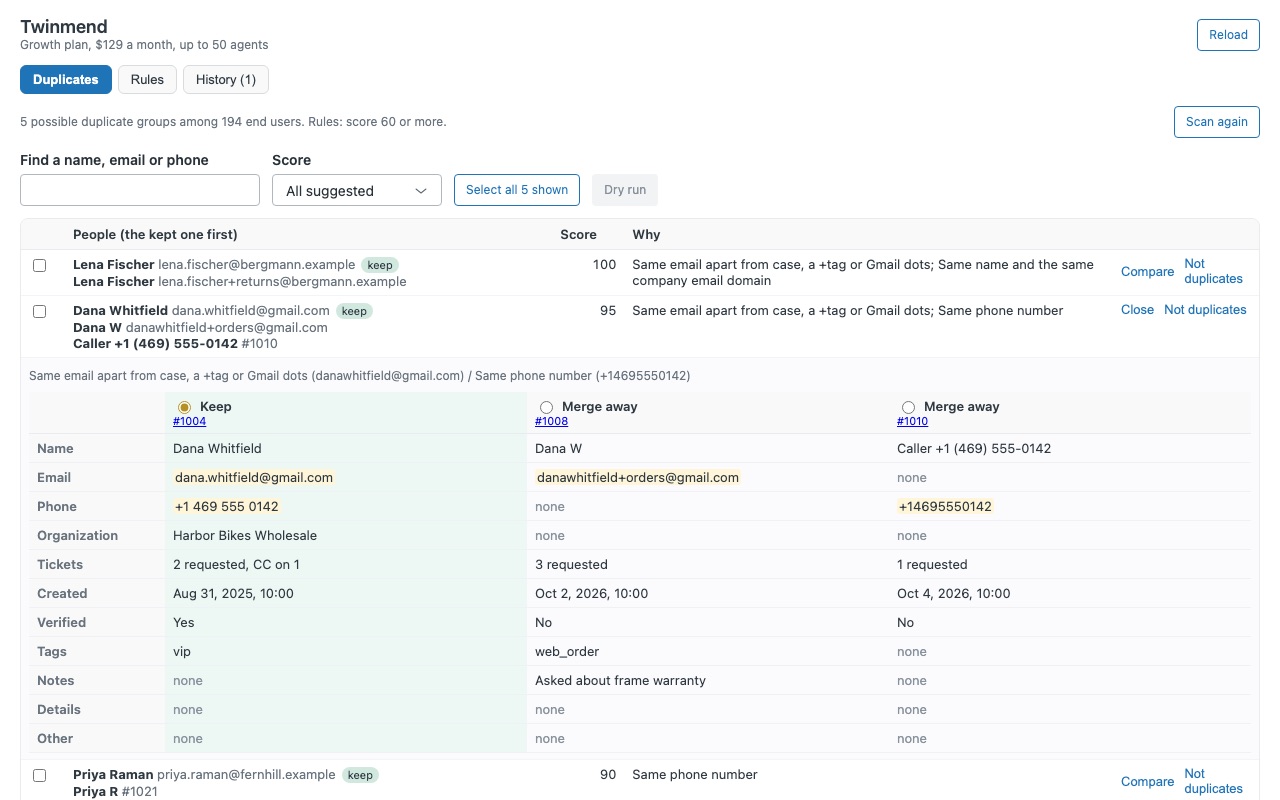
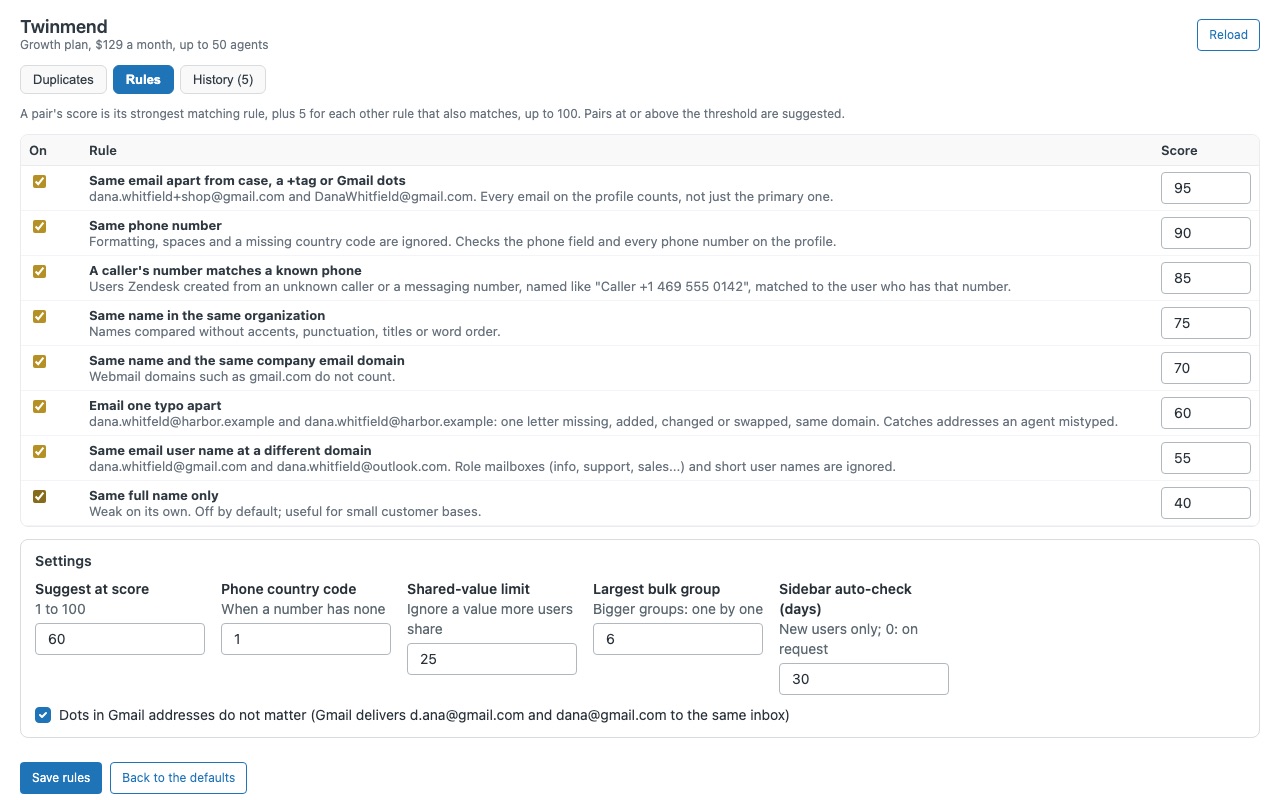
Find the customers who exist two or three times in Zendesk, review them side by side, and merge them in bulk, with a dry run first and a record of every merge. A customer writes from a second address or calls from their mobile, and Zendesk starts a new profile each time. Twinmend scans every end user, lists the people who look like one person with a score and the reason, and merges the ones you approve.
Twinmend is built by Great Work LLC. It is not made or endorsed by Zendesk.
What you get
Find every duplicate
Scan your whole customer base from the left navigation bar, best matches first. Matching that understands how duplicates happen: email case, +tags and Gmail dots; phone numbers typed with or without spaces or the country code; unknown callers matched by number; the same name in the same organization or company domain; a one-letter typo in an address. Every email and phone on a profile counts.
Review side by side, then merge in bulk
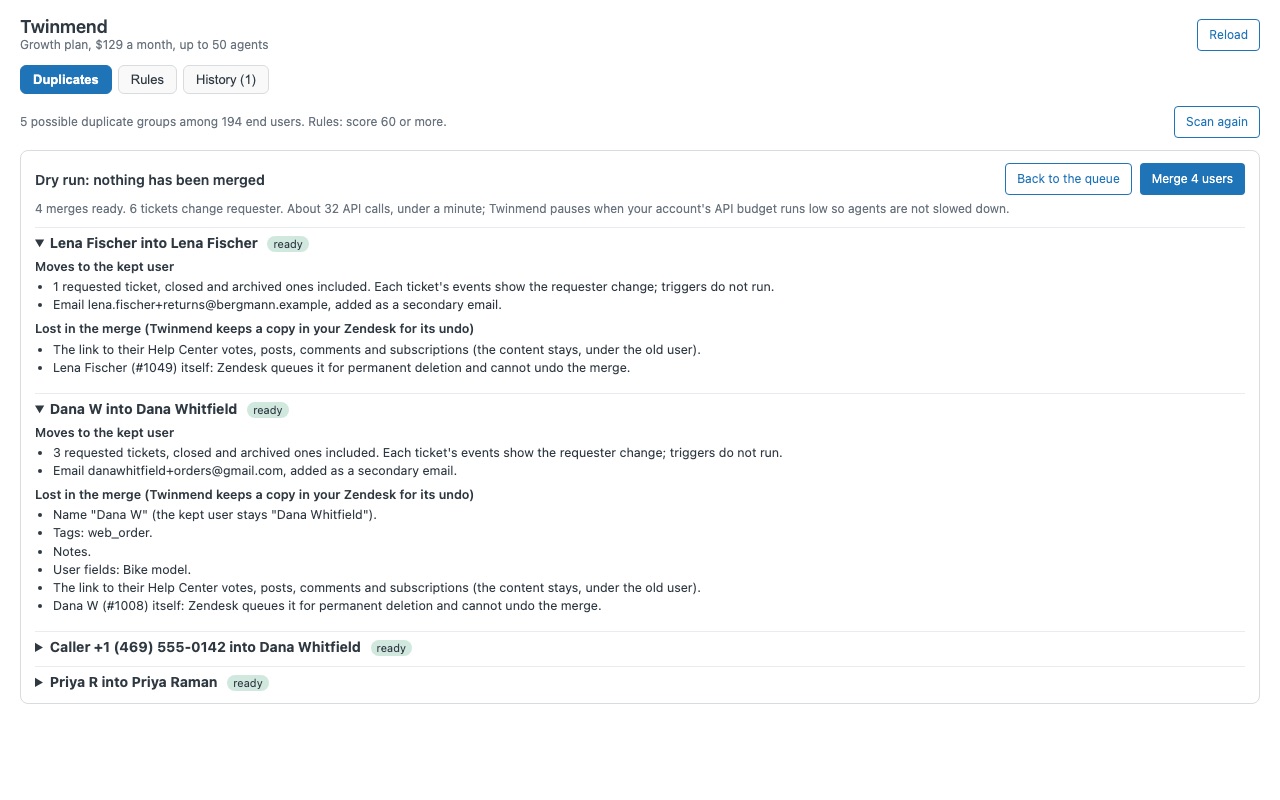
Compare shows the profiles in columns with matching values highlighted, and suggests the one to keep. Dry run before anything changes. See what moves to the kept profile, what Zendesk drops from the merged one, and which merges Zendesk will refuse.
A record of every merge, and an honest undo
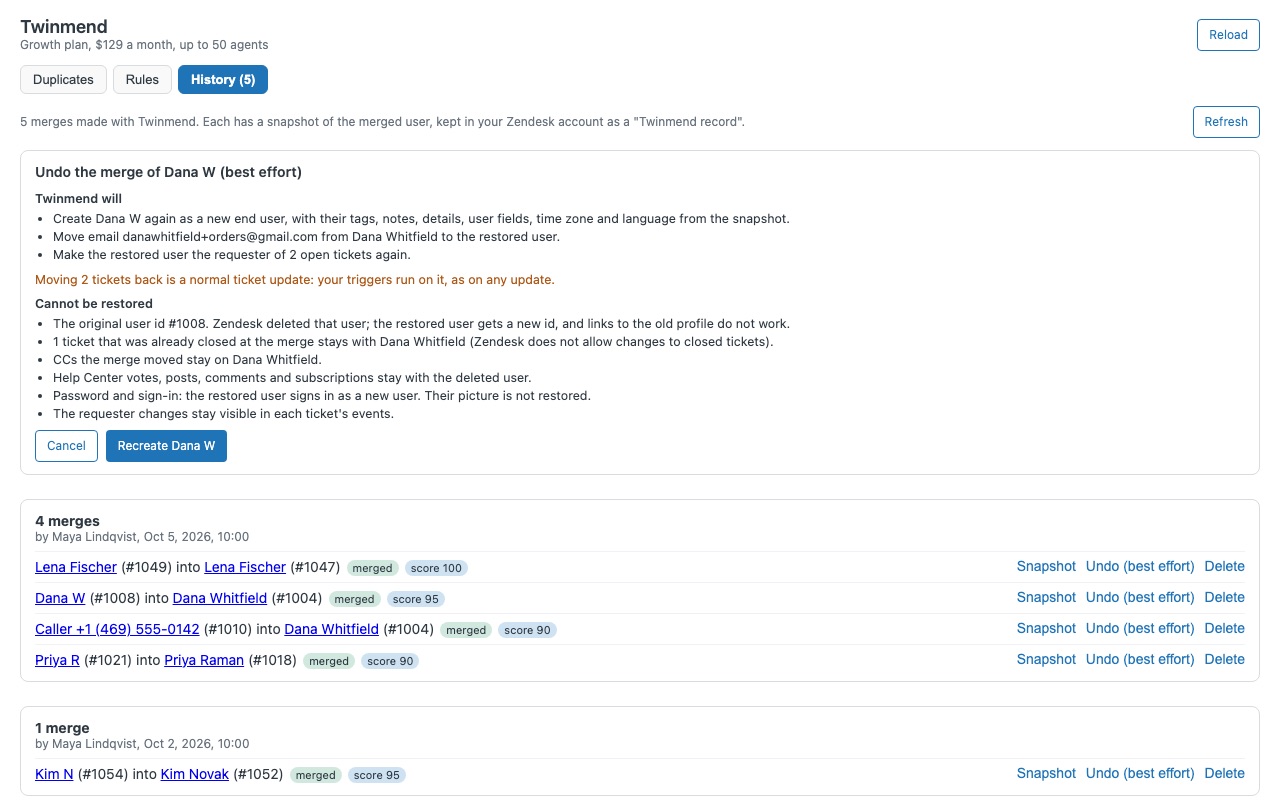
Zendesk cannot undo a merge. Before each merge Twinmend saves a snapshot of the merged profile in your own Zendesk account. Undo (best effort) recreates the merged customer, moves their emails and phone numbers back, restores organizations, and makes them the requester of their open tickets again. It shows you first what it can and cannot restore.
How Twinmend works
- Install Twinmend from the Zendesk Marketplace and pick the plan for your number of agents and admins. It creates one custom object, "Twinmend record", for its snapshots, rules and "not duplicates" pairs.
- Scan. Open Twinmend in the left navigation bar and click Scan end users. It reads your end users in your browser and lists groups of profiles that look like one person, best matches first, each with a score and the reason it matched.
- Compare. Compare opens the profiles in columns with matching emails, phone numbers and organizations highlighted. Pick the one to Keep, or mark the pair Not duplicates so it isn't suggested again.
- Dry run. Select groups and click Dry run. Nothing changes. You see what moves to the kept user, what the merge drops, which merges Zendesk will refuse, and how many tickets change requester.
- Merge. Click Merge. Twinmend merges one user at a time through Zendesk's own merge, saves a snapshot of each merged profile first, and Stop ends the run after the current merge.
- Catch new ones on the ticket. The ticket and user sidebars say "This requester may be a duplicate of ..." with the score and reason, and agents whose role allows it merge right there.
Who it's for
Accounts with years of duplicate customers
People who wrote from a work address, then a personal one, then called from a mobile. A full scan finds the existing pairs, and bulk merge clears them after you've seen the dry run.
Teams on messaging and phone
A first WhatsApp message or an unknown caller often starts a new profile even when the number is already on a customer. Twinmend matches phone numbers however they were typed and flags the new requester in the sidebar.
Admins who need a record of every merge
Zendesk can't undo a merge. History lists who merged whom, when, the score and the reason, with the snapshot behind an Undo (best effort).
What you need
- Zendesk Suite (any plan) or Support Enterprise, because Twinmend keeps its records in a custom object.
- To merge: an admin, or an agent role that can edit end users. Anyone who can see the app can scan, compare and see the sidebar hint.
- On Enterprise plans, give custom roles access to the "Twinmend record" object in Admin Center (Objects and rules, Custom objects), so their merges are recorded.
Twinmend guides
Questions about Twinmend
What does Twinmend do?
Duplicate user merge: find duplicate customers, compare side by side, merge in bulk after a dry run.
What does Twinmend work with?
Twinmend works in Zendesk Support.
How much does Twinmend cost?
Team: $49 a month per Zendesk account, up to 15 agents. Growth: $129 a month per Zendesk account, up to 50 agents. Business: $379 a month per Zendesk account, up to 150 agents. Enterprise: $2.75 a month per agent.
Is there a free trial?
14-day free trial (Zendesk asks for a card at install). Billed monthly by Zendesk. No free plan.
Where do I install Twinmend?
From the Zendesk Marketplace. Use the Install button on this page, or search for "Twinmend" there.
Who makes Twinmend?
Great Work LLC, an independent software company. Email hello@greatwork.company with any question about Twinmend and someone will answer.
Which plan do I need?
Plans go by the number of agents and admins in your Zendesk account: Team up to 15 ($49 a month), Growth up to 50 ($129), Business up to 150 ($379), Enterprise above 150 ($2.75 per agent a month). Every feature is on every plan, and scans, comparisons and dry runs work even if your team outgrows the plan; only Merge waits until you change plan.
Can it merge agents or admins?
No. Zendesk merges end users only. The dry run lists agents and admins, users with more than 10,000 requested tickets and users created by a ticket sharing agreement as refused.
Does it merge anything automatically?
No. Every merge is one you selected and confirmed after a dry run. The sidebar only suggests.
How does it decide two profiles are the same person?
With rules you control on the Rules tab: email variants (case, +tags, Gmail dots), the same phone number, a caller's number, the same name in one organization or company domain, an email one typo apart and more. Each has a score, and pairs at or above Suggest at score (60 by default) are shown.
Where are scan results kept?
Only in the open page. They're gone when you close it, and there is no download. Snapshots, rules and "not duplicates" pairs are records in your own Zendesk account.
What happens when I uninstall?
Your users stay as they are, and Zendesk keeps the "Twinmend record" object, so a reinstall still has your history. To remove everything, delete the object in Admin Center.
More Zendesk apps
 Vouchwell
 Twinewell for ShipStation
 Wharfwell for Mirakl marketplaces
 Twigwell