


Tickwell Timed quizzes for Google Forms: a countdown students can't reset, reliable auto-submit, extra time per student
Listed on the Google Workspace Marketplace as “Tickwell: Quiz Timer for Forms”
Also for Wix
$9.99 a month or $96 a year per Google account. Free trial: 40 timed attempts or 14 days, whichever comes first. No card needed.
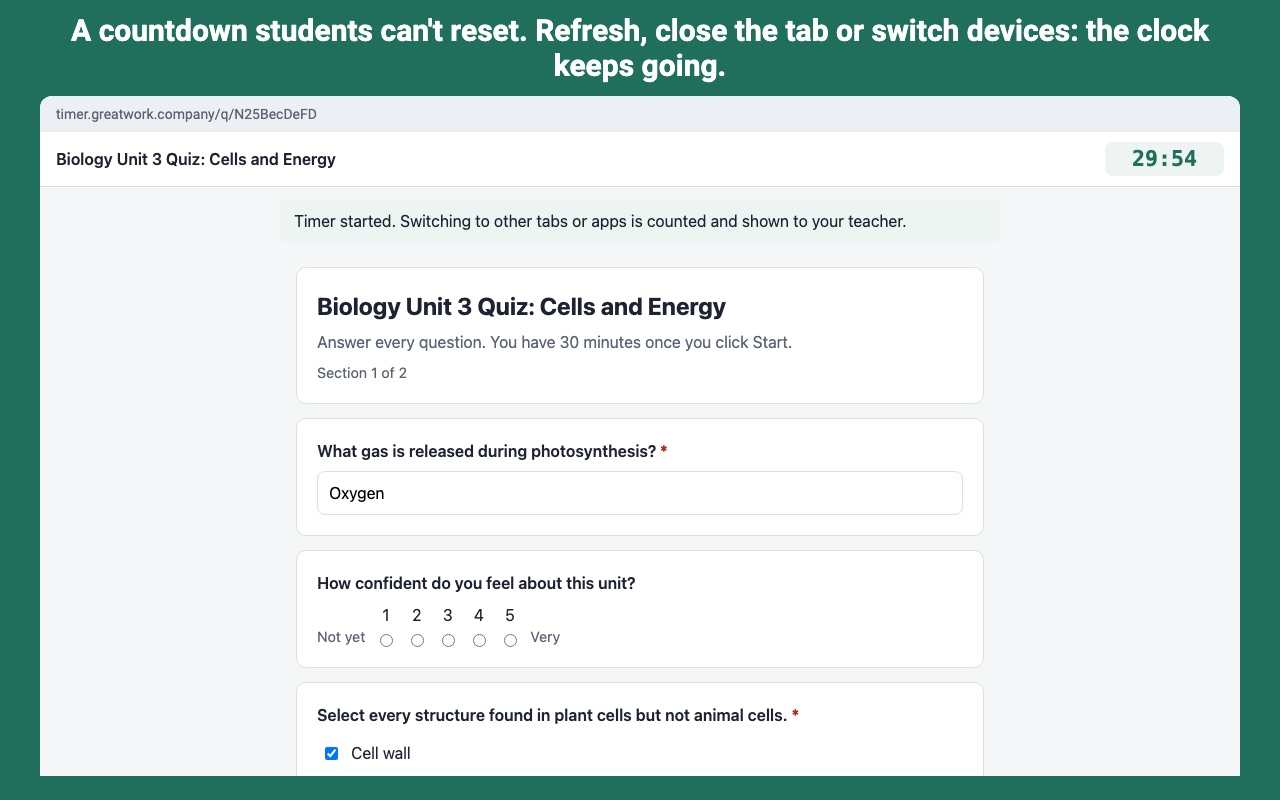
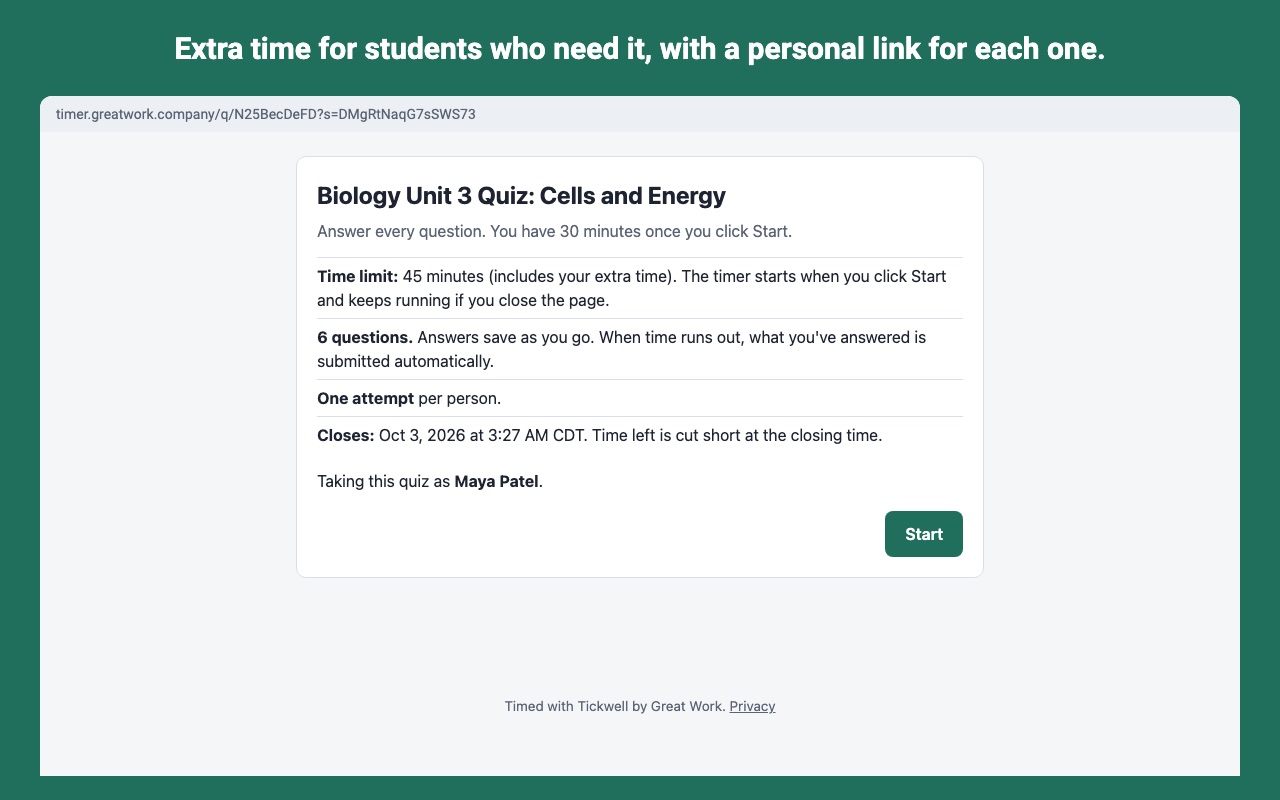
Tickwell adds a real time limit to any Google Form. You share a timed link instead of the Google Forms link. Each student gets a countdown that the server keeps, so refreshing, closing the tab, changing the device clock or opening the link on another device doesn't give anyone more time.
Answers save as students work. When time runs out they're submitted to your form automatically, even if the student closed the tab, the laptop went to sleep or the Wi-Fi dropped. You get every response in your form and your linked Sheet as usual, with the student's name, minutes taken and how the attempt ended.
What you get
- Time limits with a server-kept countdown (refreshing or reopening doesn't reset it)
- Answers save as students go and are submitted when time runs out, even if the tab was closed
- Opening and closing times
- Extra time per student (+minutes or 1.5x) with personal links
- Attempts per person, retakes in one click
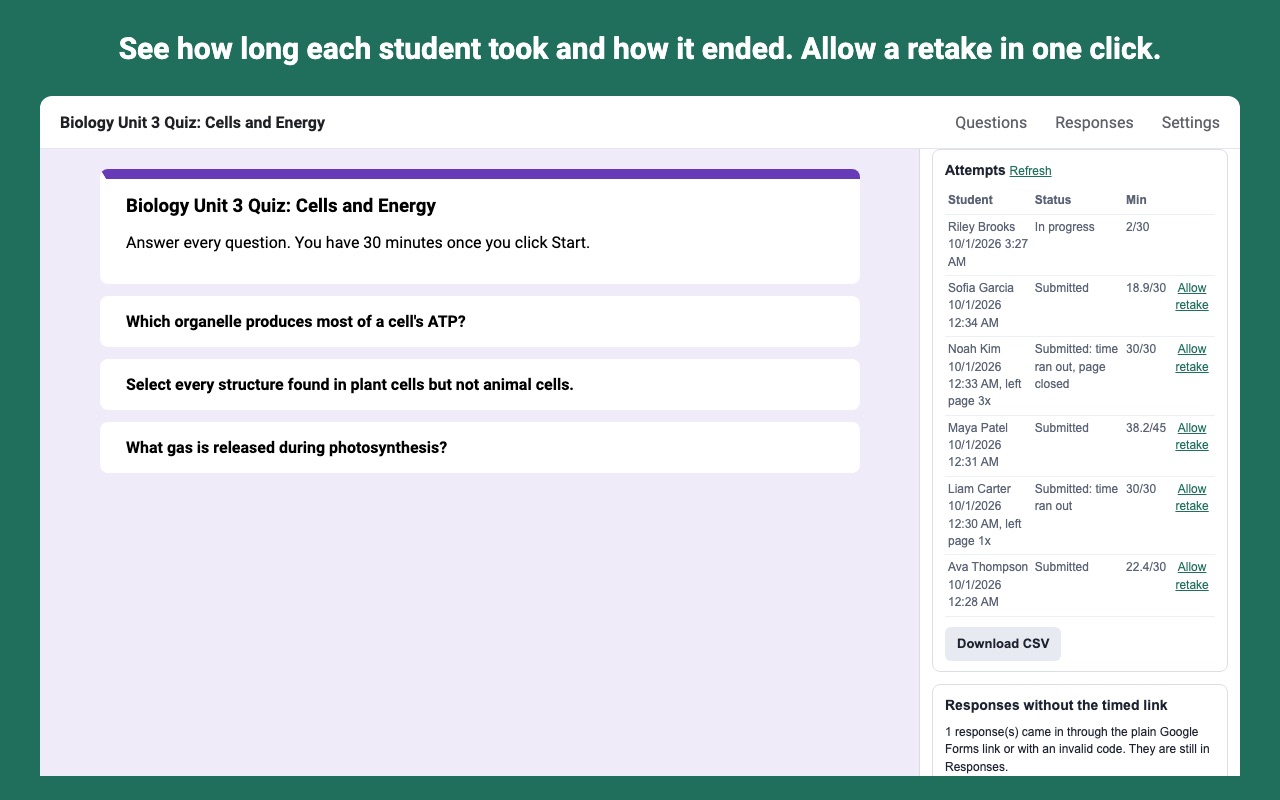
- Time taken and how each attempt ended, in your responses and linked Sheet
- Blocks submissions through the plain Google Forms link
- No camera, no microphone, minimal student data
How Tickwell works
- Install Tickwell from the Google Workspace Marketplace and open the form you want to time.
- Click the Add-ons (puzzle piece) icon, then Tickwell, then Set up timer. The settings open in a sidebar next to your form.
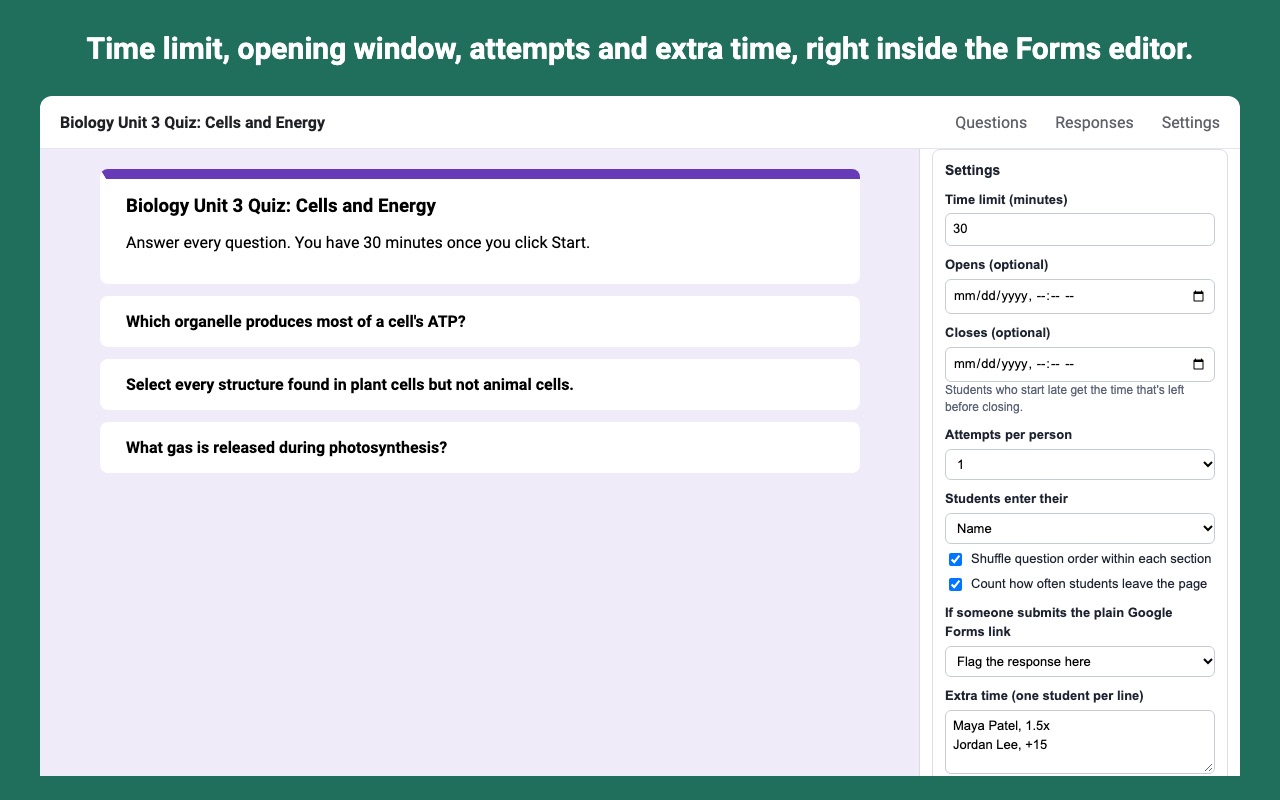
- Pick a time limit in minutes (1 to 600). Optionally set Opens and Closes times, the number of Attempts per person (1, 2, 3 or Unlimited) and whether students enter their name or their email address.
- Add extra time for anyone who needs it in the Extra time box, one student per line, such as
Ana Ruiz, +15orben@school.org 1.5x. - Click Check form, then Publish timed link. Tickwell adds four short questions at the top of your form ("Tickwell code", "Tickwell student", "Tickwell minutes taken" and "Tickwell details") that it fills in for every attempt, and you get the link to share.
- Share the timed link in your class page, an email or a Classroom post, and send each personal link to the student it belongs to.
- Watch the Attempts list in the sidebar during the test. It shows who started, when, how long they took and how each attempt ended, with Allow retake next to finished attempts and Download CSV at the bottom.
- Grade in Google Forms as usual. Responses arrive in your form and its linked Sheet, where you release scores the way you always do.
Who it's for
A teacher giving a timed unit test
Set 40 minutes, open the quiz at the start of the period and close it at the bell. A student who starts five minutes before closing gets the five minutes that are left, not a full 40.
Students with extended time in their plan
Type each student's name with 1.5x or +20 once. Each gets a personal link that already carries their time, so on test day nobody has to remember who gets what, and the rest of the class never sees it.
A quiz taken at home
When a test is open for a weekend, the opening and closing times hold the window, and one attempt per person stops a second try under the same name. If a laptop dies halfway, the answers saved up to that point still reach your form when the time runs out.
Retakes for a few students
Anyone who was sick, or whose attempt went wrong, gets Allow retake in one click instead of you copying the whole form.
Tickwell or Google Forms on its own
Google Forms can make a quiz, grade it and release scores, and you can stop accepting responses by hand. What it has no setting for is a time limit per student: a form stays open for as long as the student keeps the tab. If you only need the whole class to stop at a set time and you'll be in the room to close the form, Forms alone can do that. Tickwell is for when each student's clock should start when they start, keep running when they reload, stretch for students with extra time, and end with their work submitted.
Schools using locked mode on managed Chromebooks should know that locked mode is a Google Forms setting. Students on the timed page aren't in Google Forms, so it doesn't apply there. Tickwell can count how often a student leaves the page instead, and it never uses a camera or microphone.
Limits and requirements
- The form can't require sign-in. Set email collection to Responder input (not Verified) and don't restrict it to your school's users; Tickwell submits on the student's behalf and asks for their email itself.
- File upload questions aren't supported. Video items are skipped with a warning. Images attached directly to a question can't be read by add-ons, so use an Image item instead.
- The time limit covers the whole quiz. There's no per-question timer.
- Attempts are counted per personal link, or per name or email the student types.
- Turn off puts your form back: it submits attempts still in progress, removes Tickwell's questions and makes your required questions required again. The columns those questions filled stay in your linked Sheet.
Running a quiz on a Wix site rather than in Google Forms? Tickwell for Wix times quizzes built on Wix.
Tickwell guides
Questions about Tickwell
What does Tickwell do?
Timed quizzes for Google Forms: a countdown students can't reset, reliable auto-submit, extra time per student. Tickwell adds a real time limit to any Google Form. You share a timed link instead of the Google Forms link. Each student gets a countdown that the server keeps, so refreshing, closing the tab, changing the device clock or opening the link on another device doesn't give anyone more time.
What does Tickwell work with?
Tickwell works in Google Forms, in any browser.
How much does Tickwell cost?
$9.99 a month or $96 a year per Google account. Team plan: $30 a month or $300 a year covers everyone at your company or school who signs in to Google with an email address on your domain (not Gmail or other personal addresses). Billed through Stripe. Cancel any time from Plans and billing in the add-on.
Is there a free trial?
Free trial: 40 timed attempts or 14 days, whichever comes first. No card needed.
Where do I install Tickwell?
From the Google Workspace Marketplace. Use the Install button on this page, or search for "Tickwell: Quiz Timer for Forms" there.
Who makes Tickwell?
Great Work LLC, an independent software company. Email hello@greatwork.company with any question about Tickwell and someone will answer.
Can I set a timer for each question in Google Forms?
Not with Tickwell. The time limit applies to the whole quiz, with a warning at 5 minutes and at 1 minute left. Section branching and shuffled question order still work on the timed page.
Do students need a Google account?
No. Students open the timed link in any browser and type their name or email before they start. The form itself must not require sign-in.
What happens if a student opens the quiz on a second device?
They can't start a second attempt while one is in progress. Tickwell tells them to go back to the device they started on, or to ask you for a retake. The deadline is kept on Tickwell's server, so it doesn't move either way.
What if a student finds the normal Google Forms link?
The "Tickwell code" question is required and only the timed link can fill it in, so the plain form can't be submitted without a code. A response that gets in with a missing or copied code is flagged in the sidebar, or deleted if you picked Delete the response.
Does Tickwell change my form?
While the timer is on, it adds its four questions at the top and makes your questions optional in Google, so a half-finished quiz can still be submitted when time is up. The timed page still makes students answer your required questions before they submit early. Turn off reverses both.
Will I see how long each student took?
Yes. Each response carries "Tickwell minutes taken" and a "Tickwell details" line with the start time, end time, how it ended and the limit, in the form and in its linked Sheet.
Can I pause a quiz?
Yes. Pause keeps the link and every attempt but stops new attempts from starting until you resume.
What happens to answers if Google is slow to accept a submission?
Tickwell keeps the student's saved answers and tries again automatically. If Google still refuses, the attempt shows as failed in your Attempts list with the reason.
More Google Forms apps
 Form Bugle
 Quizferry
 Form Mailroom
 Formshelf for Notion