



Remarkwell Voice notes and audio feedback in Google Docs, Slides and Forms, saved to your own Google Drive
Listed on the Google Workspace Marketplace as “Remarkwell: Voice Notes for Docs, Slides & Forms”
$5.99 a month or $48 a year per Google account. Free trial: 15 voice notes or 14 days, whichever comes first. No card needed.
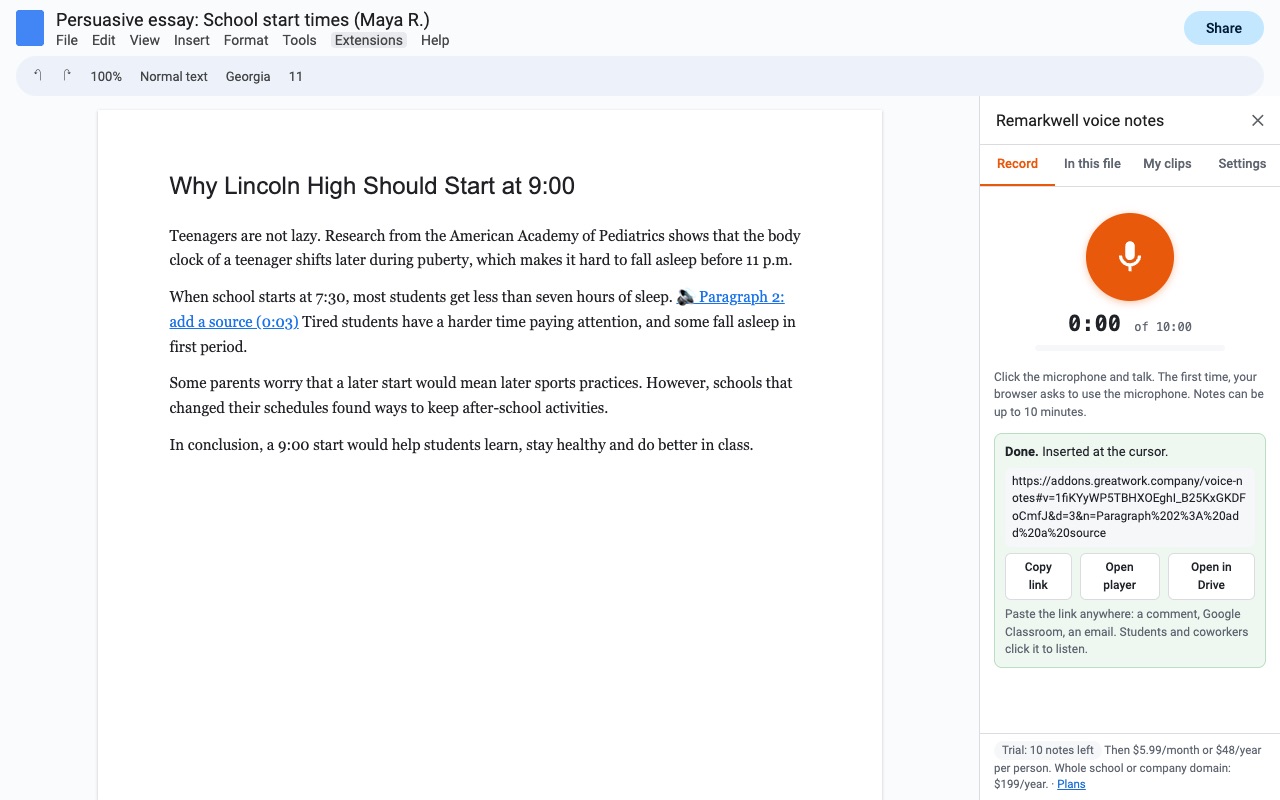
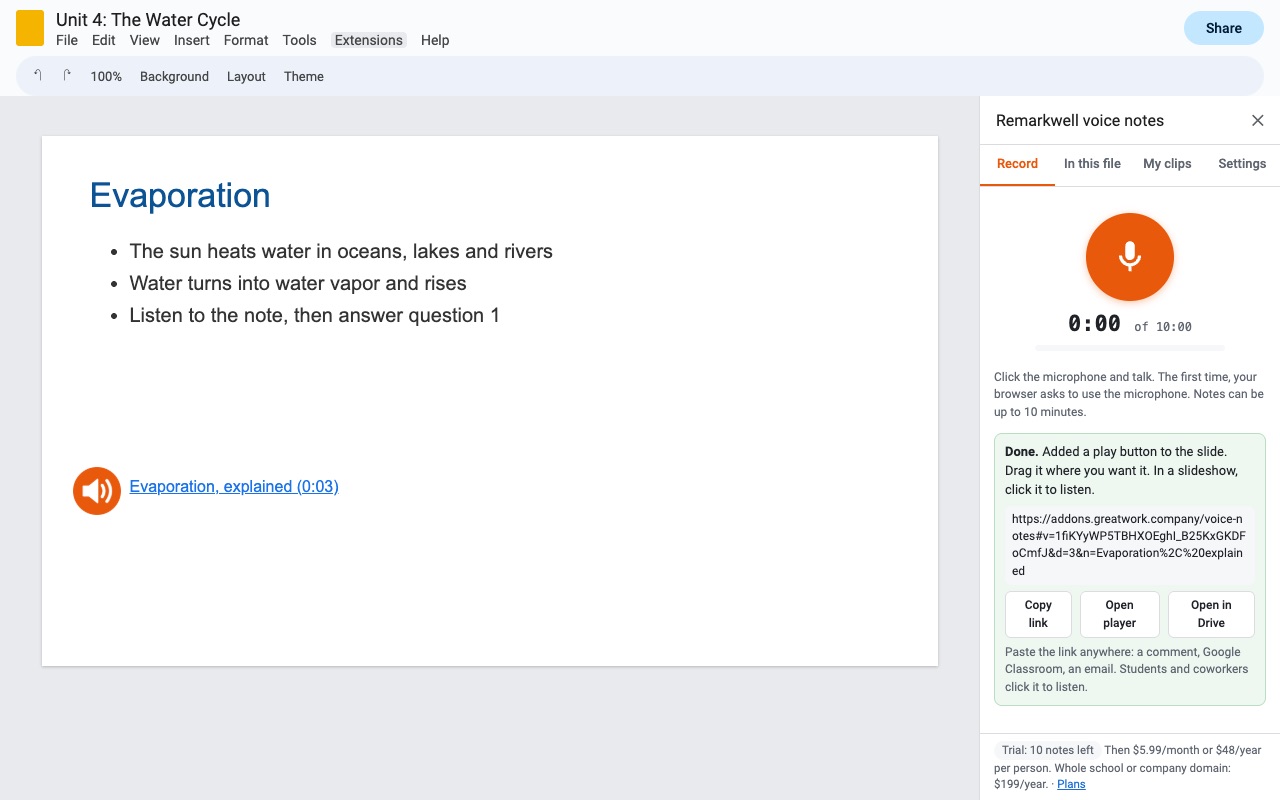
Talk instead of typing. Remarkwell records a voice note in a sidebar and puts a play link exactly where you were working: at the cursor in a Doc, as a play button on a slide, or in a question of a Form. The recording is saved in your own Google Drive, so it never sits on someone else's server.
What you get
- Record voice notes in a sidebar in Google Docs, Slides and Forms, up to 10 minutes each, with pause and listen-back
- Clips save to your own Google Drive (one folder per file); nothing is stored on our servers
- One-click play link at the cursor in Docs, a play button on the slide, a listen link in any Forms question
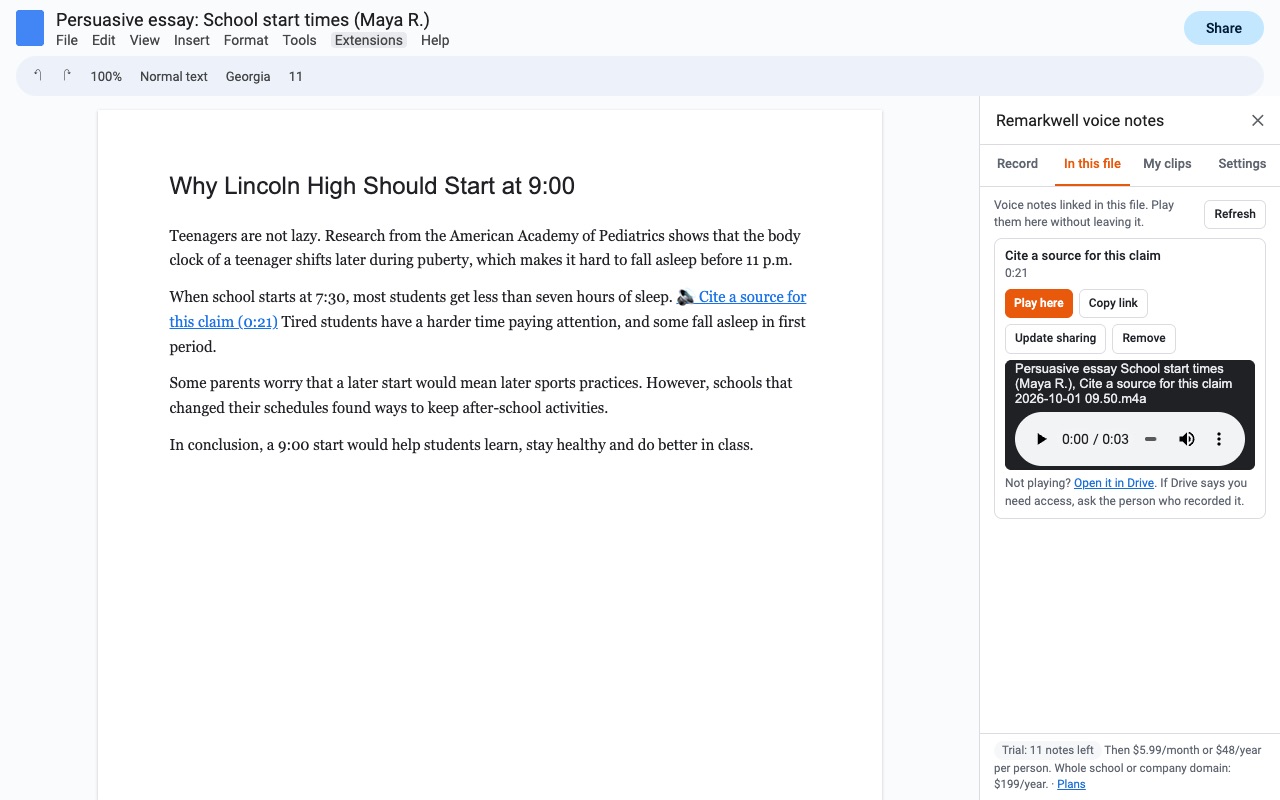
- Play every note inside the document from the sidebar, without leaving it
- Choose who can listen: your school or company, anyone with the link, the file's people, or only you
- Reusable clips: save common feedback and insert it again in any file
- Small files (AAC or Opus) or WAV for the most compatible playback
How Remarkwell works
- Install Remarkwell from the Google Workspace Marketplace and open a Doc, a deck or a form.
- Choose where the note goes. In Docs, put the cursor where it belongs or select the text it's about. In Slides, go to the slide. In Forms, you pick the spot in the sidebar under Where in the form: the form description or any question.
- Open Extensions > Remarkwell > Record a voice note. The sidebar opens on the Record tab.
- Click the microphone and talk. Pause stops and resumes; a note can run up to 10 minutes. Click Stop.
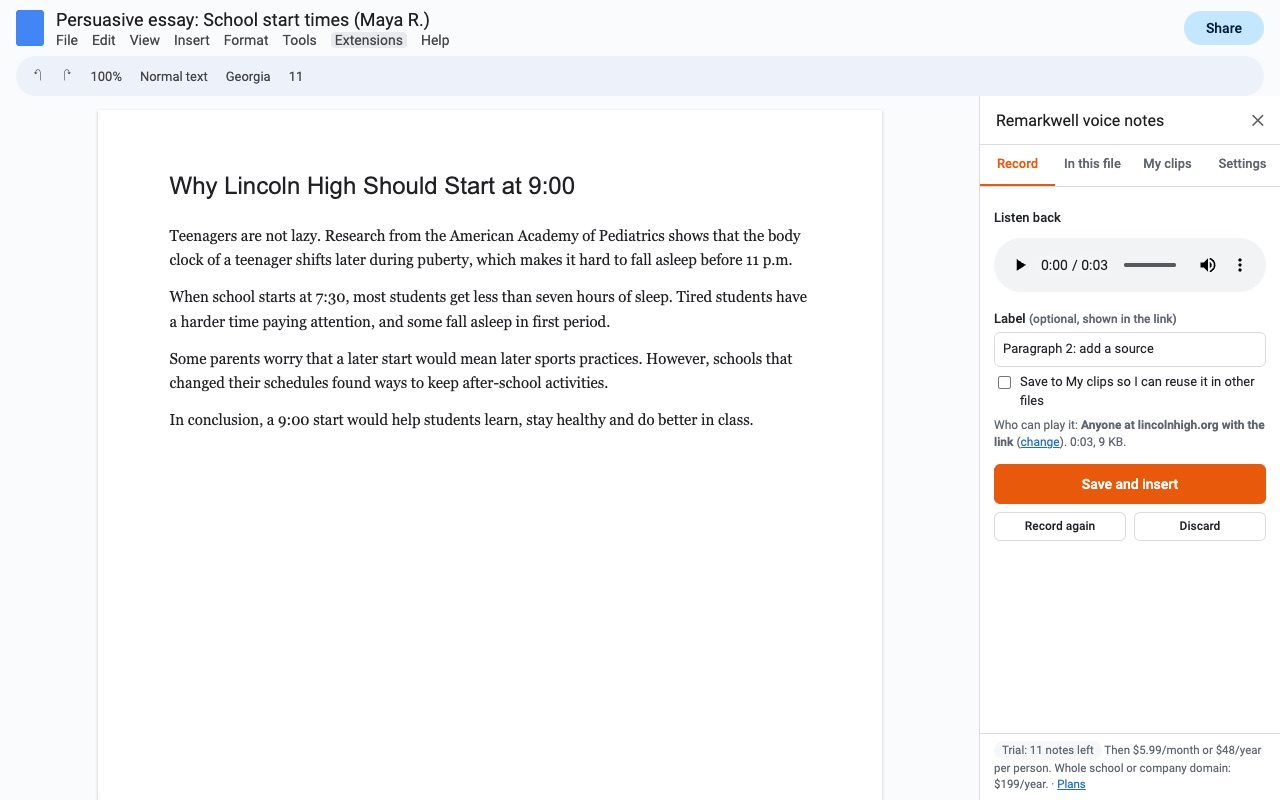
- Listen back. Add a Label if you like (it shows in the link), tick Save to My clips to reuse the note in other files, or click Record again.
- Click Save and insert. The audio is saved to your Google Drive in "Voice notes (Remarkwell)", one subfolder per file. A play link goes in at the cursor in Docs, a play button with its label goes on the slide, and a listen line goes into the form description or question you picked.
- Listeners click the link. The note plays in a small player page with their own Google access. They don't need the add-on.
Who it's for
Teachers giving feedback on student writing
Select a paragraph in a student's Doc, record 40 seconds on what works and what to fix, and the link sits right next to it. Notes you say every week, like how to cite a source, go in My clips and get dropped into the next Doc with Insert here, without recording again.
Language and reading teachers
Put a pronunciation model or a passage read aloud into a Forms question, so students hear it before they answer.
Editors, reviewers and managers
A spoken note on a draft carries tone that a typed comment loses. Set Who can play new notes to people at your company, and only coworkers with the link can listen.
Anyone presenting a deck asynchronously
Put a short explanation on each slide of a deck you send instead of presenting. Viewers click the button on the slide and hear you.
Remarkwell or what Docs, Slides and Forms do on their own
Google Docs and Google Forms can't hold audio at all. Docs' Tools > Voice typing turns speech into text, which helps with writing but loses your voice. Forms takes pictures and YouTube videos in questions, not audio. Google Slides can play an audio file with Insert > Audio, but only one that's already in your Drive; it has no way to record.
Remarkwell records inside the file, saves to Drive and places the link in one step. In Slides it adds a play button that opens the player in a new tab. To have a note play on the slide itself during a slideshow, record it with File type set to Most compatible (WAV), then use Insert > Audio and pick it from your "Voice notes (Remarkwell)" folder.
Limits and requirements
- Google Docs, Slides or Forms in a browser on a computer, with a microphone. If a school Chromebook blocks the microphone in the sidebar, Record in a small window instead opens a recorder window and sends the audio back to the sidebar.
- Notes can be up to 10 minutes each.
- Remarkwell has no transcription. You get the recording, not text.
- The player uses Google Drive, so listeners must be signed in to a Google account that has access, unless the note is shared as anyone with the link.
- Remarkwell only sees the file you open it in and the Drive files it creates. It can't read the rest of your Drive, and Great Work never receives the audio.
Remarkwell guides
Questions about Remarkwell
What does Remarkwell do?
Voice notes and audio feedback in Google Docs, Slides and Forms, saved to your own Google Drive. Talk instead of typing. Remarkwell records a voice note in a sidebar and puts a play link exactly where you were working: at the cursor in a Doc, as a play button on a slide, or in a question of a Form. The recording is saved in your own Google Drive, so it never sits on someone else's server.
What does Remarkwell work with?
Remarkwell works in Google Docs, Slides and Forms, in any browser.
How much does Remarkwell cost?
$5.99 a month or $48 a year per Google account. Team plan: $199 a year covers everyone at your company or school who signs in to Google with an email address on your domain (not Gmail or other personal addresses). Billed through Stripe. Cancel any time from Plans and billing in the add-on.
Is there a free trial?
Free trial: 15 voice notes or 14 days, whichever comes first. No card needed.
Where do I install Remarkwell?
From the Google Workspace Marketplace. Use the Install button on this page, or search for "Remarkwell: Voice Notes for Docs, Slides & Forms" there.
Who makes Remarkwell?
Great Work LLC, an independent software company. Email hello@greatwork.company with any question about Remarkwell and someone will answer.
How do I add a voice note to a Google Doc?
Put the cursor where it goes, open Extensions > Remarkwell > Record a voice note, record, then click Save and insert. A play link is added at the cursor.
Where are the recordings saved?
In your own Google Drive, in a folder named "Voice notes (Remarkwell)", with a subfolder for each Doc, deck or form. Turn off Keep each file's notes in their own Drive folder in Settings to keep them all in one folder.
Who can listen to my notes?
You choose in Settings under Who can play new notes: people at your school or company with the link, anyone with the link, only the people the file is shared with, or only you. If your organization's sharing policy blocks the choice, Remarkwell shares the note more narrowly (with your organization, or only you) and tells you so.
Do students need the add-on to hear feedback?
No. They click the link and the note plays in the player page. Students who can edit the Doc can also play every note from Extensions > Remarkwell > Voice notes in this file.
Which audio format does Remarkwell use?
Small saves AAC in current Chrome and Safari and Opus in Firefox. Most compatible saves WAV, about 2 MB a minute, which plays on old devices too.
What happens to my notes if I cancel?
They stay in your Drive and keep playing. Only recording new notes needs a trial or a plan.
What counts against the free trial?
Each new recording saved to Drive uses one of the 15 trial notes. Listening, the notes list and re-inserting a saved clip are free. The trial ends after 15 notes or 14 days, whichever comes first.
Can I delete a note?
Yes. In the In this file tab, Remove and delete the recording takes out the link and deletes the audio from Drive. A deleted note's link stops playing.
More Google Docs apps
 Syntaxwell
 Refwell
 Texwell
 Iconwell