



Cellwell Split names, split and merge text, change case, clean, extract and fill random data in Google Sheets, with a preview of every change and Undo
Listed on the Google Workspace Marketplace as “Cellwell: Split Names, Merge, Change Case & Clean Text”
$15 a month or $50 a year per Google account. Free trial: 30 days or 50 Apply runs, whichever comes first. No card needed.
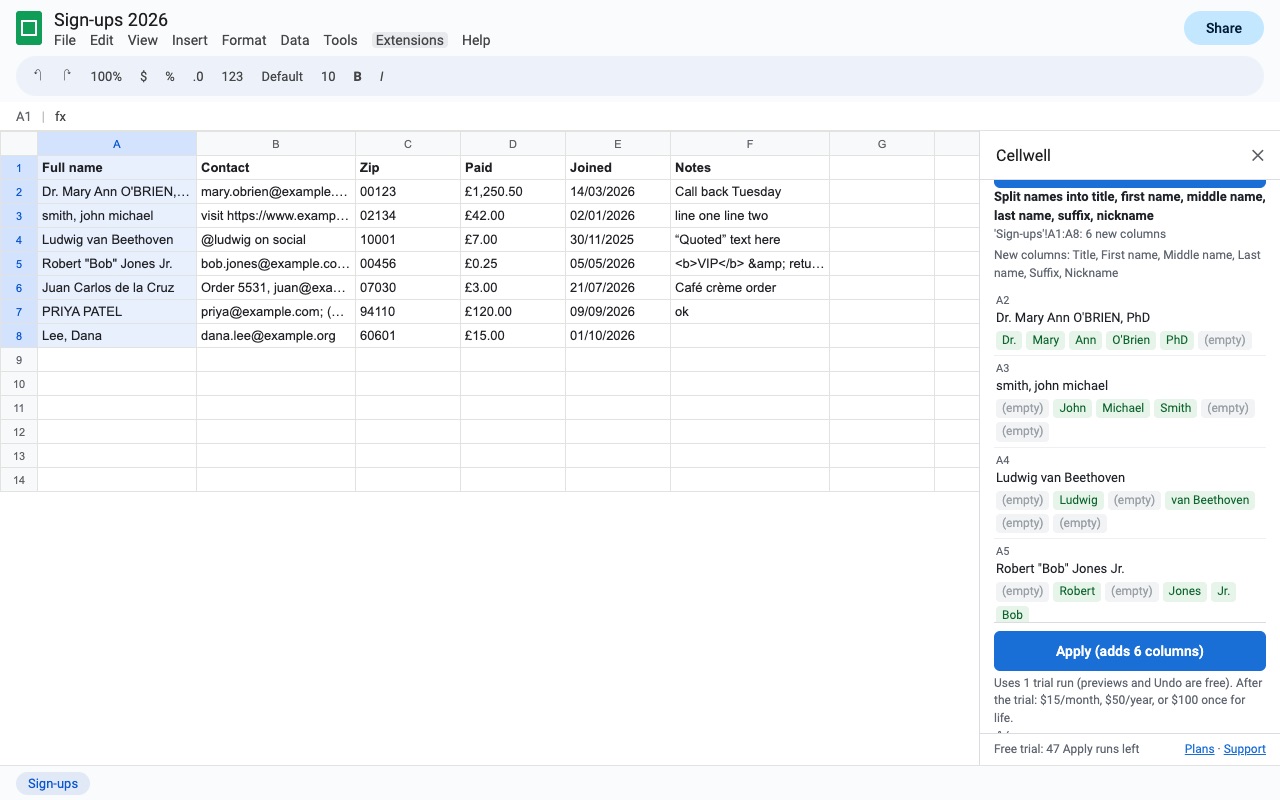
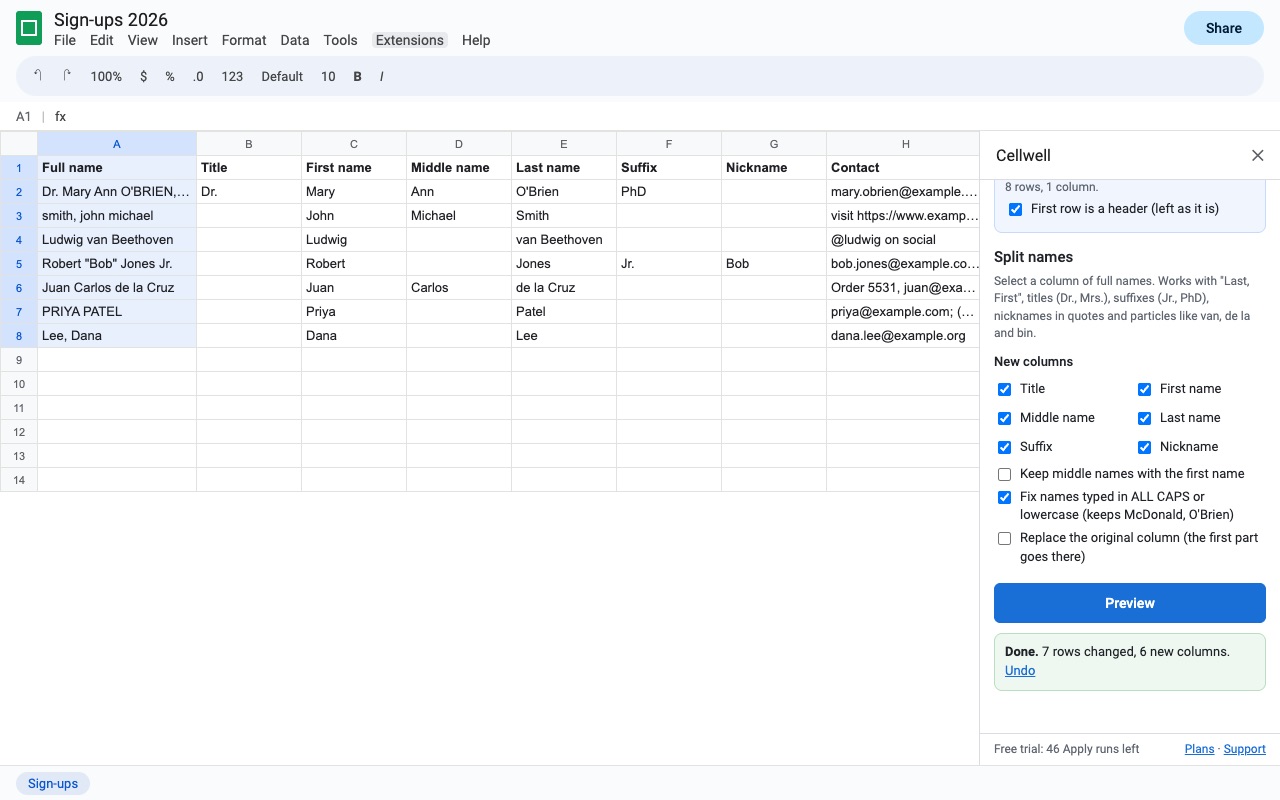
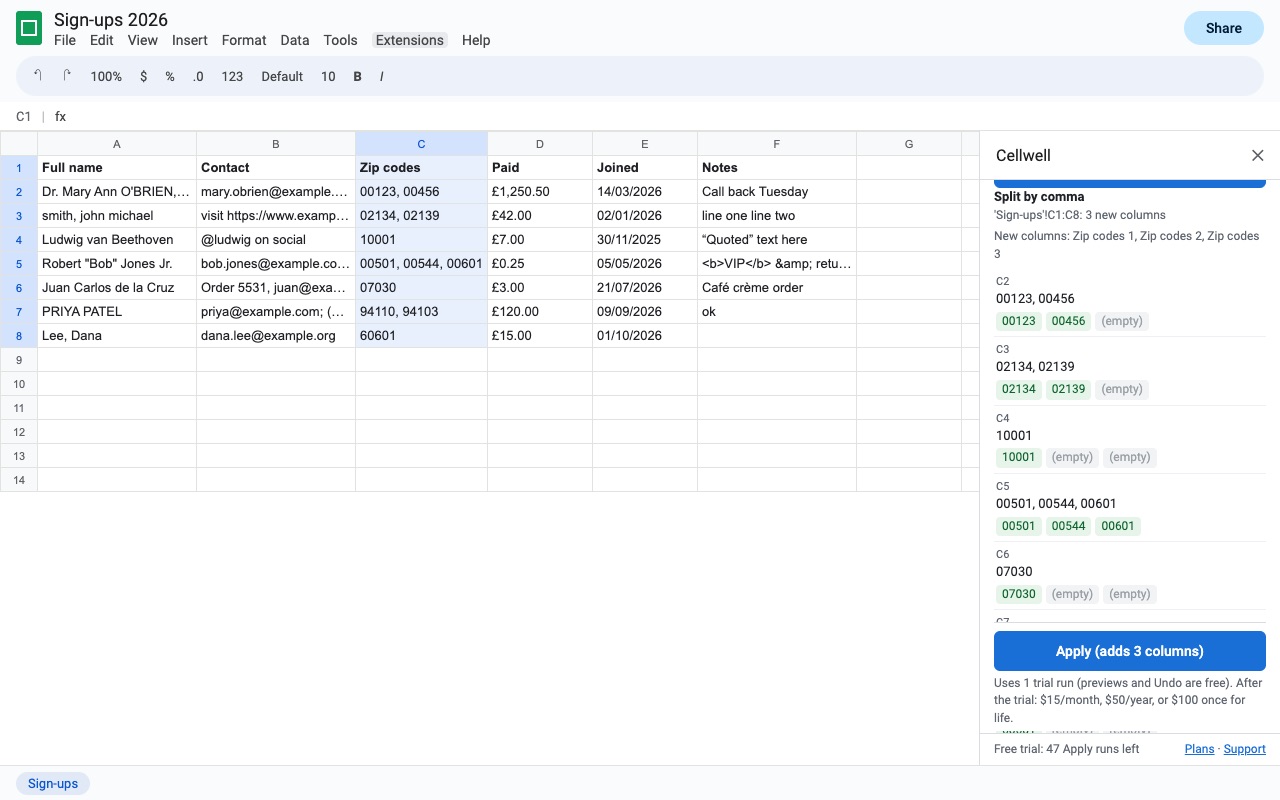
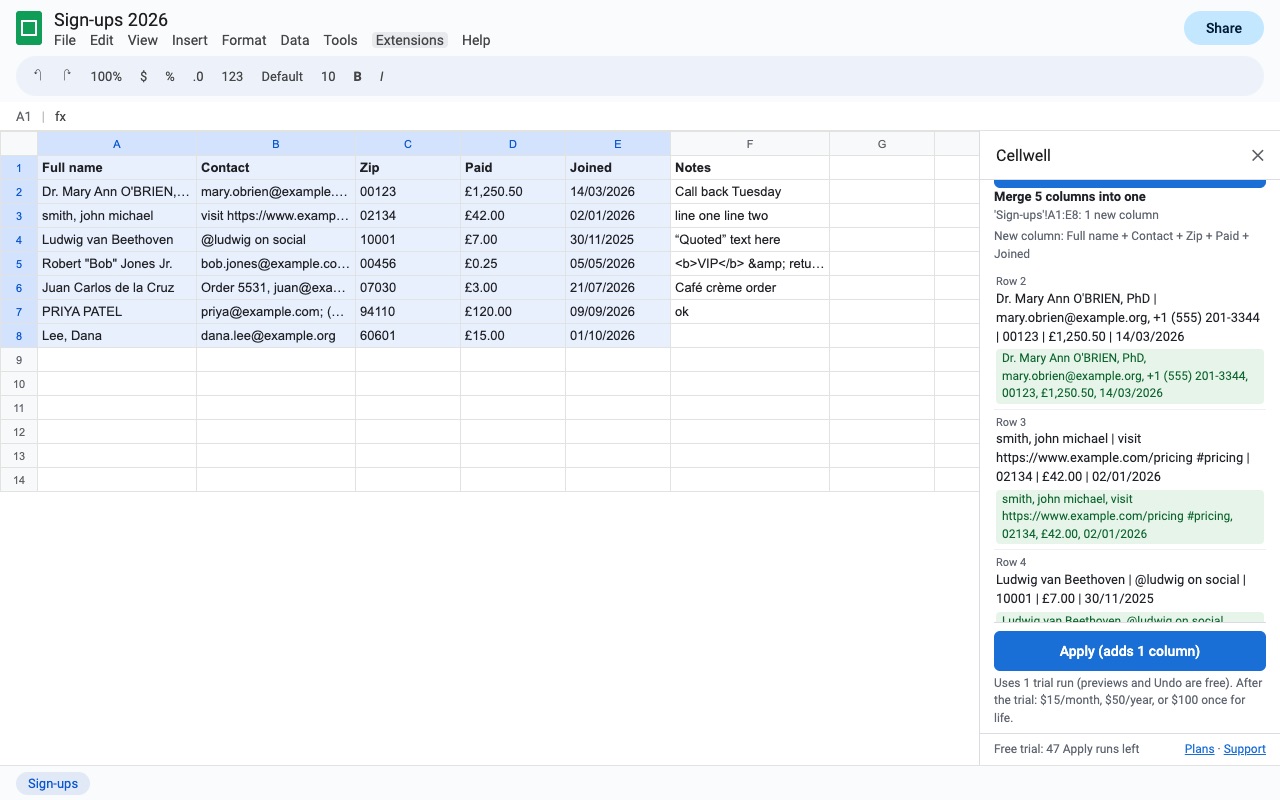
Cellwell does the text jobs Google Sheets makes you write formulas for, right in your cells, and shows you exactly what will change before anything does.
What you get
- Split names into title, first, middle, last, suffix and nickname; handles "Last, First", initials, particles like van and de la, and fixes ALL CAPS names
- Split text by commas, semicolons, spaces, line breaks or your own delimiters (quotes respected), by position, before capitals, or between letters and numbers
- Merge columns row by row, or a column into one cell, exactly as the values show (your currency and date formats are kept)
- Change case: Sentence, Title, Capitalize Each Word, UPPER, lower, Name Case (McDonald, O'Brien), tOGGLE; keeps NASA and iPhone
- Clean extra and non-breaking spaces, invisible characters, line breaks, curly quotes, accents and HTML
- Add text at any position; remove the first or last characters, some text, kinds of characters, or text before, after or between markers
- Extract emails, links, domains, phone numbers, numbers, hashtags, mentions, text between markers, or your own pattern
- Random numbers, dates, TRUE/FALSE, list picks, codes and UUIDs that do exactly what you ticked (unique means unique)
- Preview every change first; formulas are never overwritten; text like 00123 stays text; Undo any run from History, even after closing the spreadsheet
How Cellwell works
- Install Cellwell from the Google Workspace Marketplace and open your spreadsheet.
- Select the cells or the column you want to work on. A whole-column selection is trimmed to where the data ends, and one clicked cell extends down its column.
- Pick a tool from Extensions > Cellwell: Split names, Split text, Merge values, Change case, Clean text and spaces, Add or remove text, Extract text or Random data. The sidebar opens on that tool, and you can switch tools from its tabs.
- Set the options and click Preview. You see the exact cells that would change, with before and after values, and which new columns would be inserted. Nothing is written yet, and previews are free.
- Click Apply. Split, extract and merge results go into new columns next to your data, so the original column stays put unless you choose otherwise.
- Changed your mind? Open History and Undo and undo any run, even after closing and reopening the spreadsheet. Cells someone has edited since are left alone.
Who it's for
Cleaning up a contact export before an import
Names from a CRM or a sign-up form arrive as "SMITH, JOHN A." or "Dr. Maria de la Cruz". Split names fills Title, First name, Middle name, Last name, Suffix and Nickname columns, reads "Last, First" order, keeps particles like van, de la and bin with the last name, and can fix names typed in ALL CAPS.
Tidying text pasted from web pages and PDFs
Pasted data brings non-breaking spaces, zero-width characters, line breaks inside cells, curly quotes and leftover HTML. Clean text and spaces removes each kind you tick, and the preview shows which cells had them.
Pulling details out of messy cells
Extract text copies email addresses, links, domain names, phone numbers, numbers, hashtags, mentions, text between two markers, or your own regular expression into a new column.
Making test data for a template or a class
Random data fills a selection with whole or decimal numbers, dates, TRUE or FALSE, picks from your own list, codes and passwords, or UUIDs. When you tick Unique, every value is different.
Cellwell or formulas in Google Sheets
Sheets has functions for much of this, such as SPLIT, PROPER, TRIM and REGEXEXTRACT, and Data > Split text to columns. Formulas are the better choice when the source keeps changing and the result must recalculate. They take a helper column, the result is still a formula until you paste it as values, and some jobs have no function at all: PROPER turns "McDonald" into "Mcdonald" and "NASA" into "Nasa", and no function splits a full name with a title, suffix and "Last, First" order.
Cellwell writes plain values in place or in new columns, never overwrites a formula cell, and keeps text like 00123, 3/4 or a leading = as text, so Sheets doesn't turn it into a number, a date or a formula.
Limits
- Works on the selection in the open spreadsheet only.
- Big runs are written in batches; very large ones may be too big to keep for Undo, and Cellwell asks before applying without it.
- One Apply is one trial use, however many cells it changes. Previews and Undo are always free.
- Cellwell changes text inside cells. It doesn't remove or merge duplicate rows.
Cellwell guides
Questions about Cellwell
What does Cellwell do?
Split names, split and merge text, change case, clean, extract and fill random data in Google Sheets, with a preview of every change and Undo. Cellwell does the text jobs Google Sheets makes you write formulas for, right in your cells, and shows you exactly what will change before anything does.
What does Cellwell work with?
Cellwell works in Google Sheets, in any browser.
How much does Cellwell cost?
$15 a month or $50 a year per Google account. $100 once for lifetime access on one Google account. Billed through Stripe. Cancel any time from Plans and billing in the add-on.
Is there a free trial?
Free trial: 30 days or 50 Apply runs, whichever comes first. No card needed.
Where do I install Cellwell?
From the Google Workspace Marketplace. Use the Install button on this page, or search for "Cellwell: Split Names, Merge, Change Case & Clean Text" there.
Who makes Cellwell?
Great Work LLC, an independent software company. Email hello@greatwork.company with any question about Cellwell and someone will answer.
How do I split a full name into first and last name in Google Sheets?
Select the names, choose Extensions > Cellwell > Split names, tick the columns you want such as First name and Last name, click Preview, then Apply. See the step-by-step guide.
Will Cellwell overwrite my formulas?
No. Formula cells are never changed. Results that would land on one are skipped.
Can I undo a change after closing the sheet?
Yes. History and Undo keeps your runs with the spreadsheet. Undo restores the cells that still hold what Cellwell wrote.
Does change case keep acronyms?
Yes, with Keep acronyms and brand names ticked, words like NASA, iPhone and eBay stay as they are when the case changes.
Can I merge two columns into one?
Yes. Merge values joins columns row by row, or a column into one cell, with a space, comma, semicolon, line break or your own separator, using the values as they show, so currency and date formats are kept.
Does it work on numbers and dates?
Yes. Cellwell reads what a cell shows as well as its value, so a date merged into text reads as it appears in the sheet.
More Google Sheets apps
 Due Date Reminders
 Cellfetch
 Fillferry
 Cellendar