



Rowcatch Export Gmail emails to Google Sheets with parsing rules, duplicate checks and scheduled sync
Listed on the Chrome Web Store as “Rowcatch: Email Parser to Google Sheets for Gmail”
3 plans from $39 a month per Google account. Free trial: your first 100 exported emails or 7 days, whichever comes first, with every feature. No card needed.
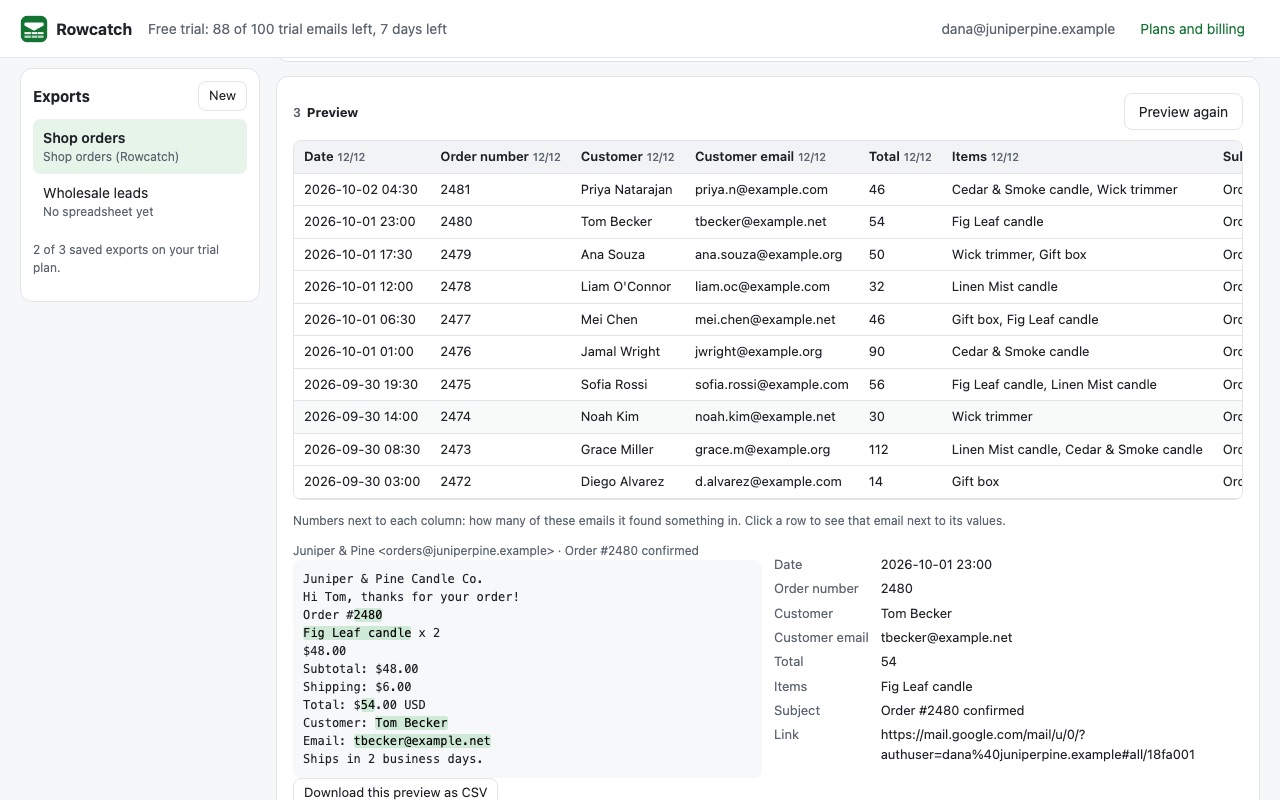
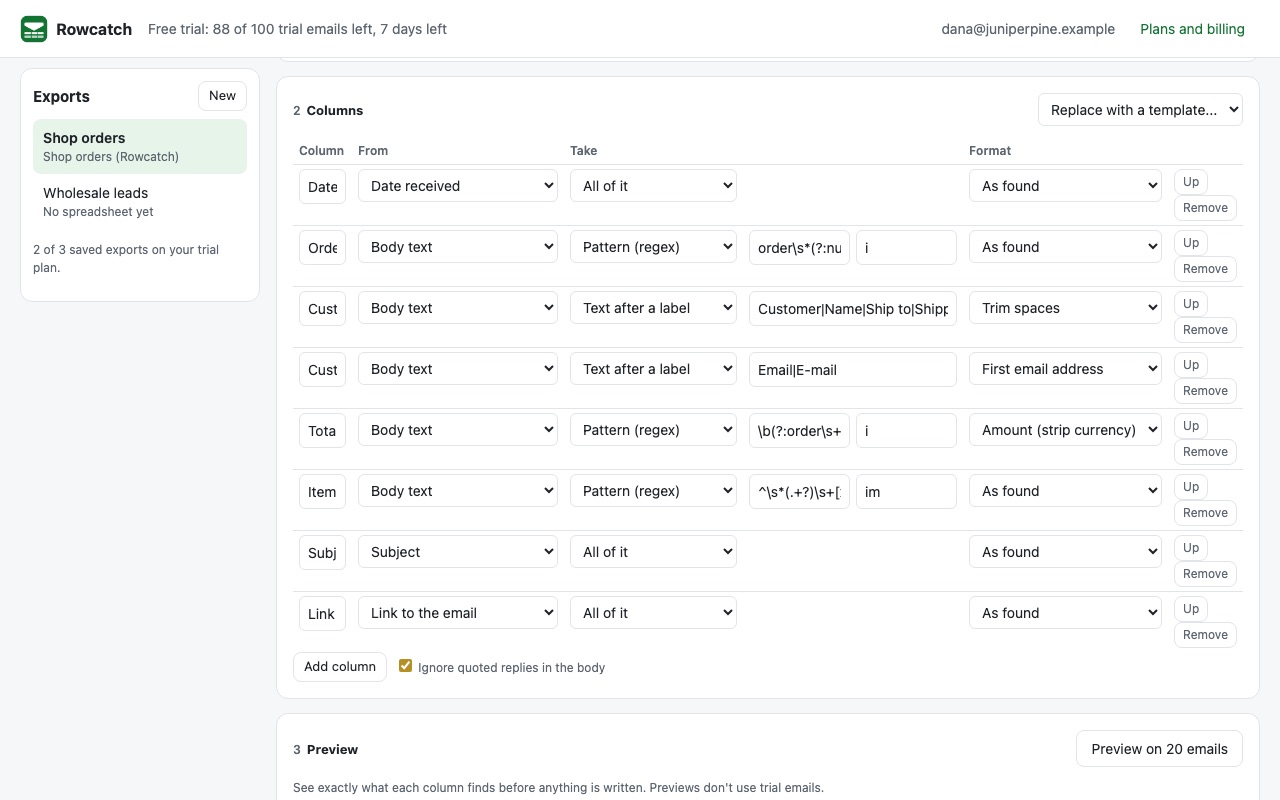
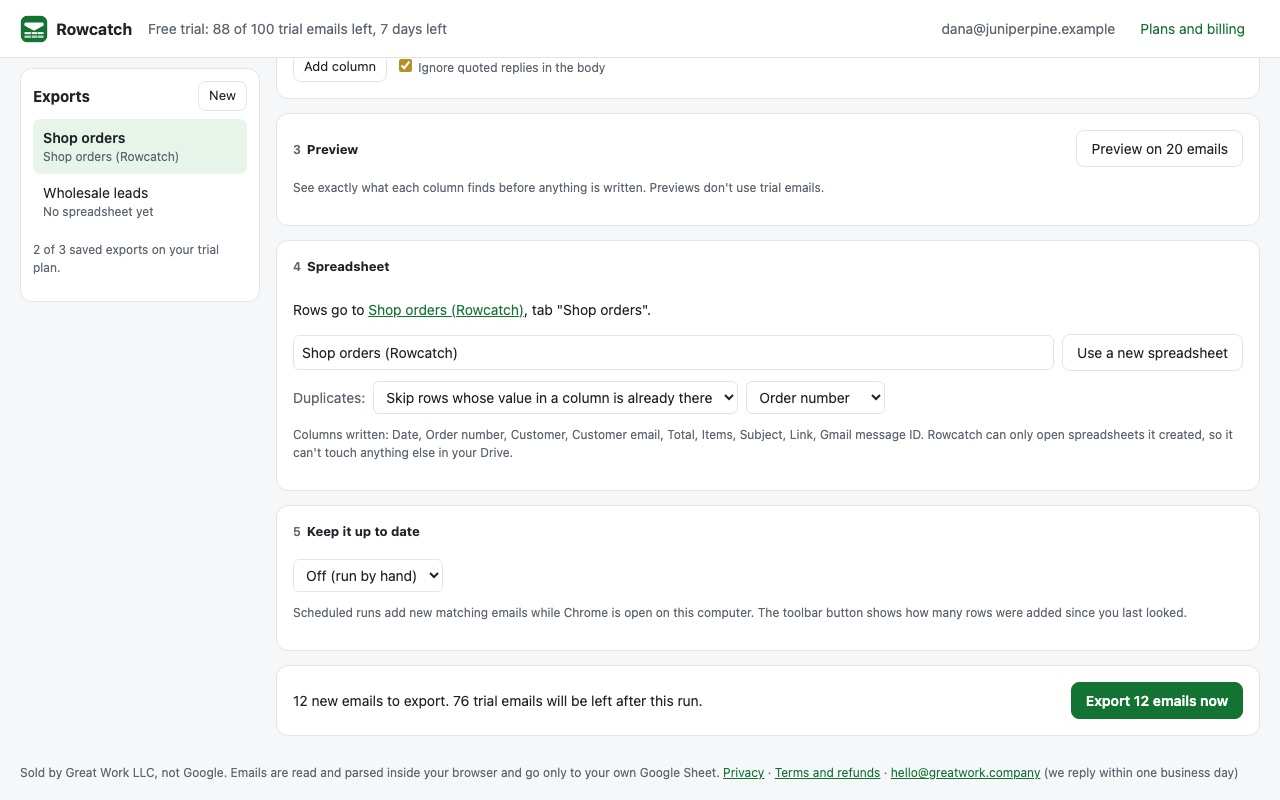
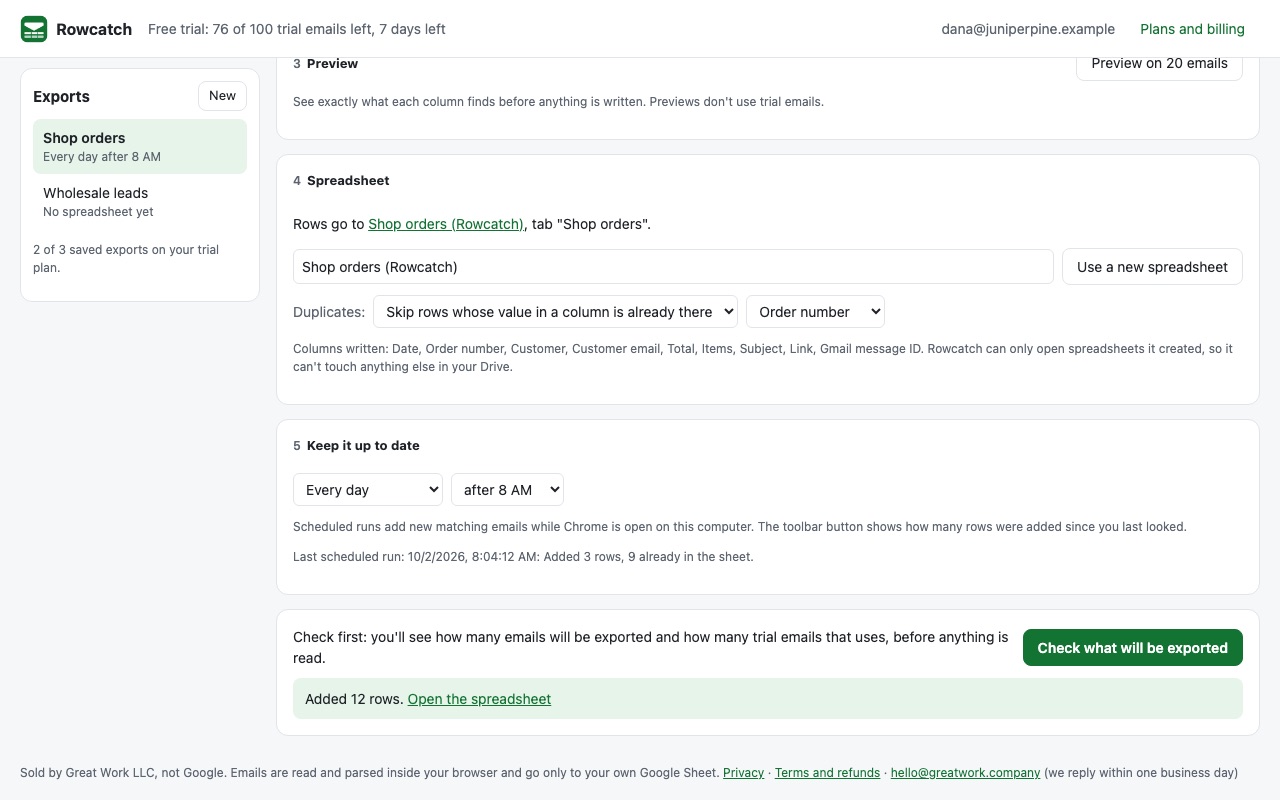
Rowcatch turns emails into spreadsheet rows. Pick emails with a Gmail search (or tick them one by one), choose the columns, preview them on your real emails, and export to a Google Sheet. Run it again or put it on a schedule, and only new emails are added.
What you get
- Export the Gmail emails you choose to Google Sheets, one row per email
- Column rules: text after a label, between markers, regex, templates
- Order, lead, invoice and form-notification templates
- Preview on your own emails before anything is written
- Duplicate checks by email, conversation or column
- Scheduled sync hourly, every 6 hours or daily while Chrome is open
- Emails are parsed in your browser; nothing from your email reaches Great Work
How Rowcatch works
- Add Rowcatch to Chrome from the Chrome Web Store and click its toolbar button. Rowcatch opens in its own tab.
- Sign in with Google. One consent screen asks to read your Gmail, create spreadsheets and know your email address.
- Click New and pick a template: Email details, Orders, Leads and contact forms, Invoices and receipts, or Form notifications. Each one fills in a Gmail search and a set of columns.
- Choose the emails. Step 1, Which emails, takes the same search you'd type in Gmail (
from:,subject:,label:,has:attachment,newer_than:7d). Click Find emails to tick individual emails, or leave it to export every match. - Set the columns. In step 2 each column has a From (sender, subject, body text, labels, attachment names, any header) and a Take rule: All of it, Text after a label, Text between, Pattern (regex), Line number or Combine (template). Format turns values into numbers, amounts, dates, the first email address or the first phone number.
- Click Preview on 20 emails. You see each column's value next to the email it came from, and how many emails each column found something in. Previews write nothing and use no trial emails.
- Create the spreadsheet, check, export. Step 4 creates a Google Sheet in your Drive. Check what will be exported shows how many emails the run writes before anything is read, then Export N emails now adds the rows.
- Keep it up to date. Step 5 runs the export every hour, every 6 hours or every day while Chrome is open, adding only new emails.
Who it's for
Shops that live in order emails
Shopify, WooCommerce, Etsy and Square send a confirmation for every sale. The Orders template pulls the order number, customer, customer email, total and items into one row per order, and skips an order number that's already in the sheet when a confirmation arrives twice.
Anyone collecting leads by email
Website contact forms and lead notifications land in Gmail as "Name: ... Email: ... Message: ..." emails. Rowcatch turns each one into a row with the name, email, phone, company and message in their own columns, ready to sort, filter or hand to a CRM import.
Bookkeeping from invoices and receipts
The Invoices and receipts template records the vendor, invoice number, amount, due date and the names of the attached files, with a link back to each email.
Keeping a log of who wrote and when
Email details writes the date, sender, recipients, subject, preview text, labels, attachment names and a Gmail link for every email that matches a search, which works as a correspondence log for a client, a project or a shared inbox.
Rowcatch or Gmail's own tools
Gmail has no button that exports emails to a spreadsheet. Its filters can label, archive or forward matching mail, but they can't write anything to a sheet. Google Takeout exports a whole mailbox as an MBOX file, which is a copy for email programs, not rows you can sort, and it doesn't pull an order number or a phone number out of the body.
Rowcatch fits when the same kind of email keeps arriving and you want one row per email with the values in their own columns. It isn't the right tool for moving a mailbox to another email account, and because it writes only to spreadsheets it creates, it can't add rows into a sheet you already have.
What you need
- Google Chrome on Mac, Windows, Linux or ChromeOS.
- A Google account with Gmail (personal Gmail or Google Workspace).
- Chrome open on that computer for scheduled runs. Exports you start by hand run whenever you click.
Rowcatch guides
Questions about Rowcatch
What does Rowcatch do?
Export Gmail emails to Google Sheets with parsing rules, duplicate checks and scheduled sync. Rowcatch turns emails into spreadsheet rows. Pick emails with a Gmail search (or tick them one by one), choose the columns, preview them on your real emails, and export to a Google Sheet. Run it again or put it on a schedule, and only new emails are added.
What does Rowcatch work with?
Rowcatch works in Google Chrome on Mac, Windows, Linux and ChromeOS.
How much does Rowcatch cost?
Starter: $39 a month or $390 a year per Google account. 1 saved export and 1,000 emails a month. Pro: $70 a month or $699 a year per Google account. 10 saved exports and 2,000 emails a month. Business: $99 a month or $990 a year per Google account. Unlimited saved exports and 4,000 emails a month. Billed by Great Work LLC through Stripe. Cancel any time from Manage billing.
Is there a free trial?
Free trial: your first 100 exported emails or 7 days, whichever comes first, with every feature. No card needed.
Where do I install Rowcatch?
From the Chrome Web Store. Use the Install button on this page, or search for "Rowcatch: Email Parser to Google Sheets for Gmail" there.
Who makes Rowcatch?
Great Work LLC, an independent software company. Email hello@greatwork.company with any question about Rowcatch and someone will answer.
Can Rowcatch write into a spreadsheet I already have?
No. Rowcatch asks only for access to the files it creates, so it can't open or change any other file in your Drive. Create the sheet in step 4, then add your own columns, notes or formulas next to the exported ones; Rowcatch keeps them and lines new rows up by column name.
How many emails can one export handle?
An export you start by hand writes up to 2,000 emails in one run, and a scheduled run up to 300. When a search has more, run it again and Rowcatch continues where it stopped, since emails already in the sheet are skipped.
Can an email put a formula into my sheet?
No. Any value that starts like a formula is written as plain text.
Can Rowcatch change or send my email?
No. Gmail access is read-only: it can't send, delete, label or move anything.
What happens if a scheduled run fails?
Rowcatch tries again on later runs and pauses the schedule after five failures in a row, or right away if Google needs you to sign in again. The export shows why it paused and a Resume button.
Can I use the rows somewhere other than Google Sheets?
Yes. The preview has a "Download this preview as CSV" link, and anything in the Google Sheet can be downloaded as CSV or Excel from Sheets' File menu.

