AudioKick
AudioKick app icon

AudioKick for Mac

Crackling Mac audio, fixed from the menu bar.

When your music starts popping, crackling or hissing, AudioKick restarts the part of macOS that plays every sound, in one click, and picks your music back up. No Terminal, and after the first time, no password.

Free downloadDownload for Mac

Free, with no ads or account. Version 1.0.0 · 776 KB · macOS 14 Sonoma or later · Apple silicon and Intel

Get our next small fix by email

Why this exists

I listen to music all day while I work, and every few days it starts to crackle. Pops, static, a sound like a speaker with a loose wire. Pausing doesn't fix it, and neither does switching headphones.

What fixes it is restarting coreaudiod, the background process macOS sends every sound through. That means opening Terminal, typing sudo killall coreaudiod and then my password. I was doing that a few times a week, so I made it a menu item.

While building it I noticed my AirPods Max were set as my Mac's microphone. Whenever anything uses that mic, macOS switches the headphones into headset mode and music sounds noticeably worse. So AudioKick can keep the Mac's own microphone as the input too.

Jake Marsh, Great Work

What's going on when it crackles

Every sound on your Mac, from Spotify to a FaceTime call to the alert when an email arrives, passes through one system process called coreaudiod. When it gets into a bad state, all of it suffers at once: crackles, dropouts, static, or audio that drifts out of sync.

Restarting coreaudiod clears it. macOS starts a fresh copy right away, your sound cuts out for about a second, and apps reconnect on their own. AudioKick does the restart, waits until audio is back, and nudges your music player if it went quiet.

What it does

One click, sound's back

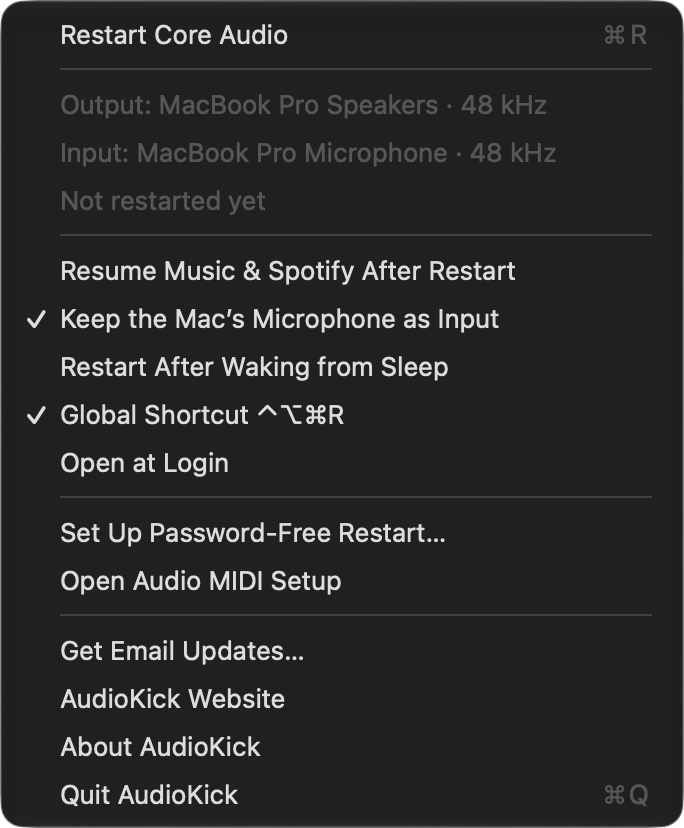
Click the speaker in your menu bar and choose Restart Core Audio. AudioKick waits until the audio system is running again, then shows a checkmark.

A shortcut from anywhere

Press Control-Option-Command-R in any app, mid-song, without opening a menu. You can turn the shortcut off if it clashes with something.

Your password once, not every time

macOS only lets an administrator restart Core Audio, so the first restart asks for your password. AudioKick then offers to let your account run that one command without it.

Your music picks back up

Music and Spotify sometimes go silent after a restart while still showing as playing. If either was playing, AudioKick pauses and resumes it so the sound comes back.

Headphones stay in music mode

Turn on Keep the Mac's Microphone as Input and AudioKick switches back to the built-in mic whenever Bluetooth headphones grab it, so your music stays at full quality.

Fresh audio after sleep

If the crackling tends to start when your Mac wakes up, turn on Restart After Waking from Sleep and AudioKick restarts Core Audio a few seconds after every wake.

And the rest

See what's playing where

The menu shows your current output and input device and their sample rates, and warns you when a Bluetooth mic is pulling your headphones into headset mode.

Open at Login

One click in the menu and AudioKick is there every time you start your Mac.

Audio MIDI Setup, one click away

For when you want to check or change a device's sample rate yourself.

Counts the restarts

The menu shows when you last restarted and how many times in total, in case you're curious how often your Mac needs it.

Private

No account and no analytics. AudioKick only goes online if you sign up for email updates.

Small

Under 1 MB, native on Apple silicon and Intel, signed and notarized by Apple.

Why Bluetooth headphones sound worse sometimes

Bluetooth headphones have two modes. Music mode is high-quality stereo, but it only sends sound one way. Headset mode adds the microphone, and to fit your voice on the same connection it squeezes the music into a much smaller, flatter signal.

macOS makes AirPods and most Bluetooth headphones your default microphone every time they connect. So the moment anything listens, whether it's a call, a browser tab, dictation or Siri, your music drops into headset mode and can stay there. The switch back is a common moment for crackling to start.

Keep the Mac's Microphone as Input fixes the default. If a calling app has your headphones picked by name in its own settings, set it to System Default there too.

Get started

  1. Download AudioKick, open the disk image and drag AudioKick into Applications.
  2. Open AudioKick. A speaker icon appears in your menu bar.
  3. When your audio crackles, click it and choose Restart Core Audio. The first time, macOS asks for your password; choose Set Up when AudioKick offers to skip it next time.

Free downloadDownload for Mac

Version 1.0.0 · 776 KB · macOS 14 Sonoma or later · Apple silicon and Intel. Signed with Great Work LLC's Apple Developer ID and notarized by Apple.

Questions

Is it safe to restart coreaudiod?

Yes. It's the same as the Terminal command people pass around for this, sudo killall coreaudiod. macOS starts Core Audio again immediately. Sound stops for about a second, and apps that were playing reconnect on their own.

What exactly does password-free restart change?

It adds one file, /etc/sudoers.d/audiokick, containing a single rule that lets your account run /usr/bin/killall coreaudiod as an administrator without a password. The rule is checked with visudo before it's installed. Nothing else gets administrator access. Choose Require Password to Restart in the menu to remove it.

Will it stop the crackling for good?

No. AudioKick fixes it when it happens. If it keeps happening with Bluetooth headphones, turn on Keep the Mac's Microphone as Input, which removes one common cause.

Why does macOS ask to let AudioKick control Music or Spotify?

That's how AudioKick checks whether they're playing and resumes them after a restart. If you'd rather it didn't, choose Don't Allow, or turn off Resume Music & Spotify After Restart in the menu.

How do I uninstall it?

If you set up password-free restart, choose Require Password to Restart in the menu first. Then quit AudioKick and drag it from Applications to the Trash.

Does it collect any data?

No. AudioKick has no analytics and no account. It sends nothing anywhere unless you type your email into Get Email Updates.

Which Macs does it run on?

Any Mac on macOS 14 Sonoma or later, Apple silicon or Intel.

Why is it free?

We made it for ourselves and figured other people have the same crackle. If you'd like to hear about the next small fix we make, join the email list below.

Get the next fix

We make small tools for annoyances like this one. Add your email and we'll tell you about new ones and AudioKick updates, about once a month. Unsubscribe anytime.